
Getting your home connected to high-speed internet is an exciting milestone. Whether you just moved into a new house or finally upgraded to the power of Quantum Fiber Internet®, that moment when the technician finishes the setup feels like opening a door to a world of endless possibilities. You are ready to stream your favorite shows, dive into some intense online gaming, and handle the traffic from your connected devices without missing a beat.
However, once the installation is complete, the work for a homeowner is not quite finished. To truly get the most out of your new connection, there are several foundational steps you should take to help ensure your network is secure, efficient, and ready for the future. Think of it like moving into a new home; just because the boxes are inside doesn't mean you are settled. You need to arrange the furniture, check the locks, and make sure everything is exactly where it needs to be for your lifestyle.
Setting up your home network correctly from the start helps prevent technical headaches down the road. It isn’t just about making sure the lights on the router are green; It’s about creating a digital environment that supports your work, your entertainment, and your family's safety. In this guide, we will walk through 10 essential steps that every homeowner should take immediately after their internet installation. From securing your digital perimeter to optimizing your physical hardware, these tips are designed to help you create a seamless and reliable experience for everyone in your household.
Key takeaways
- Security first: Changing default credentials and enabling modern encryption like WPA3 helps protect your home network from unauthorized access and cyberthreats.
- Optimal placement: Working with your technician during installation to find a central location for your router helps provide consistent coverage throughout the home.
- Performance check: Running speed tests and identifying dead zones early helps ensure your service aligns with your plan’s expectations.
- Organization matters: Renaming devices and setting up guest networks helps maintain a tidy, manageable, and secure digital environment.
- Future-proofing: Considering advanced Wi-Fi technology like Wi-Fi 7 and mesh systems helps support expanding bandwidth demands as your household grows.
Jump to the sections that matter most to you
- Step 1: Secure the network immediately
- Step 2: Update router and device software
- Step 3: Optimize router placement
- Step 4: Test internet speed and coverage
- Step 5: Connect and organize smart devices
- Step 6: Set up guest Wi-Fi
- Step 7: Adjust parental controls
- Step 8: Back up important settings
- Step 9: Enable security and monitoring features
- Step 10: Plan for future needs
- A connected home is a happy home
- Frequently asked questions
Step 1 Secure the network immediately
The very first thing you should do after your internet is up and running is to help protect your digital front door. Most routers come with a default network name and a generic password printed on a sticker. While convenient for the initial setup, leaving these defaults in place is like leaving your spare key under the welcome mat. Hackers often know the default naming conventions and passwords used by manufacturers, making these "out-of-the-box" settings an easy target.
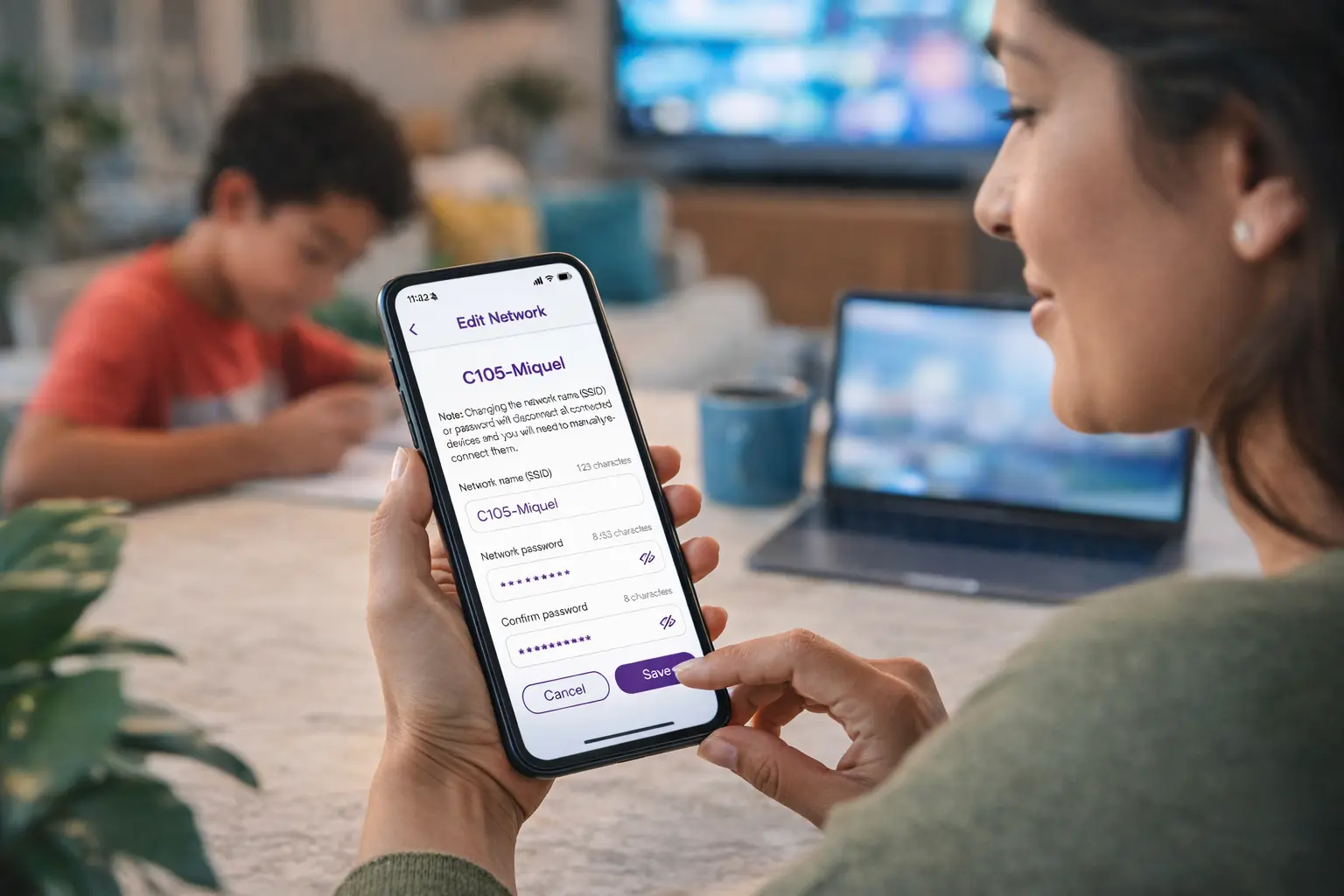
Change the default Wi-Fi name (SSID)
Your Service Set Identifier (SSID), which is the name of your Wi-Fi network, should be something recognizable to you but should not include personal details. When naming your network, keep the following in mind:
- Avoid using your full name or the names of family members.
- Do not include your home address or apartment number.
- Use a neutral or creative name that makes the network easy for you to identify but meaningless to a stranger.
- Masking your identity from strangers who might be scanning for networks helps reduce the likelihood of targeted attempts to access your system.
Set a strong and unique Wi-Fi password
A strong password is your primary defense against unwanted guests. We recommend a long passphrase that combines various elements to help maximize security:
- Use a mix of uppercase and lowercase letters.
- Incorporate numbers and special symbols (e.g., !, @, #, $).
- Aim for a length of at least 12 to 15 characters, as longer passwords are harder for automated tools to guess.
- Avoid using common words or easily discoverable information like birthdays or pet names.
- Using a unique password that you do not use for other accounts helps ensure that even if one of your other digital accounts is compromised, your home network remains secure.
Enable WPA3 security
If your router supports it, make sure WPA3 (Wi-Fi Protected Access 3) is enabled. This is the latest security protocol and offers enhanced protection over the older WPA2 standard. It helps protect your data as it travels through the air, making it much more difficult for anyone to intercept your personal information. When using advanced Wi-Fi technology from Quantum Fiber, which is powered by Wi-Fi 7, you are likely already benefiting from some of the most advanced security features available today. Wi-Fi 7 helps provide greater coverage throughout your home than Wi-Fi 6, and its integration of WPA3 is a key part of that modernized experience.
Step 2: Update router and device software
Software updates are more than just new features; they often contain critical security patches that help protect your devices from the latest cyberthreats. Just because a device is new to you doesn't mean it has the most recent software installed. Often, hardware sits in a box for weeks or months before it reaches your home, during which time new vulnerabilities may have been discovered and patched.
Check for router firmware updates
The router or in your Quantum Fiber setup, the hardwired Wi-Fi pod, is the brain of your home network. Check the manufacturer's app or the router’s dashboard for the following:
- Verify the current firmware version and compare it to the latest version online.
- Install any pending security patches or performance improvements.
- Enable "Auto-Update" if the feature is available.
- Keeping the firmware current helps maintain performance and helps ensure that the latest security protocols are active.
Update your connected devices
Once the router is updated, take a moment to check all of your hardware. Operating systems like Windows, macOS, iOS, and Android frequently release updates that improve how your devices talk to modern routers. Be sure to update:
- Smartphones and tablets.
- Laptops and desktop computers.
- Smart TVs and streaming sticks.
- Gaming consoles and handhelds.
For students and remote workers, keeping devices updated is especially critical for maintaining the security of school or company data.
Step 3: Optimize router placement

Where you put your router is just as important as the technology inside it. Wi-Fi signals are essentially radio waves, and they can be blocked or weakened by physical obstacles. Many homeowners make the mistake of hiding their router in a cabinet or behind a TV for aesthetic reasons, but this significantly hampers the signal's ability to reach every room.
Strategic positioning with your technician
When your Quantum Fiber service is being installed, the moment the technician arrives is the best time to talk about placement. While some providers might have limitations on where they can run cables, our technicians work to help find a great spot for your hardwired Wi-Fi Pod. To help provide consistent coverage, follow these placement rules:
- Aim for a central location on the main floor of your home.
- Keep the router elevated on a shelf or desk rather than on the floor.
- Avoid placing it in a basement or a far corner unless that is where you primarily use the internet.
- This initial placement is vital because moving a wired router later might require professional help or running long cables through your home.
Avoiding interference and using mesh
Wi-Fi signals are sensitive to their surroundings. To help minimize interference, keep your router away from thick walls, large metal objects, and appliances that emit signals, such as microwaves and baby monitors.
If you have a larger home, one router might not be enough to reach every corner. Advanced Wi-Fi technology powered by Wi-Fi 7 helps provide greater coverage throughout your home than Wi-Fi 6, which can help reduce how many pieces of hardware you need to maintain a strong signal. During your installation, a Quantum Fiber technician will work with you to analyze your floor plan and determine if an additional pod is needed. They will help evaluate your signal strength in real-time and will recommend any necessary additional Wi-Fi pods (satellite mesh nodes) at that time to help ensure you have the best experience possible.
One of the great benefits of a mesh setup is flexibility; while the primary Wired Pod is fixed, any additional units can be moved around at any time. This allows you to experiment with placement to help minimize dead zones and provide a seamless experience as you move from the kitchen to the home office.
Step 4: Test internet speed and coverage
Now that the hardware is in place and the software is updated, it is time to see what your connection can really do. Testing helps verify that you are getting the value you expect from your plan and identifies areas where your home's layout might be working against you.
Run a speed test near the router
Stand near your router and run a speed test to see how your connection is performing. For the most accurate results, we recommend using the Quantum Fiber internet speed test tool. Here is what to look for:
- Check that your download speed aligns with your plan (e.g., speeds of up to 940 Mbps).
- Verify that your upload speed also aligns with your plan. Quantum Fiber offers symmetrical speeds on most plans which are excellent for video conferencing.
- Understand the Wi-Fi difference: While your fiber internet line delivers high-speed data directly to your home, a speed test performed over Wi-Fi may not reflect the full 940 Mbps (megabits per second) potential of your plan. This is due to the nature of wireless signals, which naturally experience overhead and interference as the data moves from the router to your device. Factors like the distance between the device and the router, physical obstructions, and even the wireless capabilities of the device itself can impact the speeds you see in a browser. For the absolute most accurate reading of your incoming speed, a direct, wired Ethernet connection is recommended.
Identify and minimize dead zones
Don't just test near the router. Walk the home while the test is running to identify weak signal areas. Be sure to check far corners, upstairs bedrooms, and outdoor areas like the backyard patio. If you notice a significant drop in signal or speeds, you have identified a dead zone. Knowing where these weak spots are allows you to adjust the placement of your pods. This step helps ensure that your gaming sessions stay virtually lag-free and your movie nights are free from excessive buffering.
Step 5: Connect and organize smart devices

The modern home is often filled with a wide range of online activities and devices. From thermostats and cameras to doorbells and speakers, lots of modern devices need a reliable connection to function correctly.
Rename your devices in the dashboard
As you connect each device, take a moment to look at your router’s dashboard or management app. Often, devices appear as a string of random characters. Renaming them to something like "Kitchen Echo" or "Master Bedroom TV" makes management much easier. If you see a device you don't recognize, having a clear list helps you identify if an unauthorized user has joined your network.
Identify kids' devices for easier management
For families, it is particularly helpful to identify and name every device belonging to your children. When you connect a child's tablet, laptop, or gaming console, label it immediately with their name (e.g., "Sam's Tablet" or "Chloe's Laptop"). This simple step makes setting up parental controls in Step 7 much easier and more accurate. When you can see exactly whose device is whose in your management app, applying content filters or setting bedtime schedules becomes almost effortless.
Clean up and prioritize
If you are moving from an old network to a new one, this is a great time to audit your devices. Disconnect old tablets or phones that you no longer use. Reducing unused devices helps reduce "noise" on your network and helps ensure that your bandwidth is being used by the devices that actually matter to you. This organization is the first step in managing digital wellness and helps keep your network optimized for your most important tasks.
Step 6: Set up guest Wi-Fi
Providing your friends and family with internet access shouldn't mean giving them the keys to your entire digital life. Many homeowners forget this step, but it is one of the most effective ways to help protect your privacy.
Create a separate network for visitors
Most modern routers allow you to enable a guest network. This is a secondary Wi-Fi signal with its own name and password. Benefits include:
- Visitors can get online almost instantly without knowing your primary password.
- Guests cannot access your primary devices, such as home servers or printers.
- Your personal data remains private, even when you are being a hospitable host.
- This separation helps provide a hassle-free experience for your guests.
Isolation for security
Keeping guests on a separate network helps protect your personal files and devices. If a guest's phone happens to have malware or a security vulnerability, it won't be able to spread to your main computers through the network. It is a simple step that helps keep your primary connection dedicated to your household's needs.
Step 7: Adjust parental controls (If needed)

For families, the internet is an incredible tool for learning and entertainment, but it also requires some boundaries to help ensure a safe and healthy environment. Parental controls aren't just about blocking "bad" sites; they are about helping manage how much time is spent online.
Set content filters and screen-time limits
Many router management apps, including those used with advanced Wi-Fi technology from Quantum Fiber, include built-in parental controls. You can use these tools to set content filters to help block inappropriate websites or establish device schedules that automatically turn off the internet at bedtime.
Apply rules by device or user
Instead of applying strict rules to the whole-home network, which might interfere with a parent working from home, you can usually apply these rules to specific devices or user profiles. Because you clearly identified your kids' devices in Step 5, you can now apply these rules precisely to the right hardware. This allows you to help keep your kids safe while maintaining the performance you need for work, providing a balanced digital environment for all ages.
Step 8: Back up important settings
After you have spent time customizing your network name, password, and parental controls, you don't want to lose that work. Technical glitches or power surges can sometimes cause a router to reset to its factory defaults.
Document your credentials securely
Keep a secure record of your Wi-Fi name (SSID), password, and router admin login. While you shouldn't keep this on a sticky note attached to the router, you can use a password manager or a physical notebook kept in a secure location. Having this information on hand helps ensure that recovery after an outage is a seamless experience.
Save your admin settings
Some routers allow you to export a configuration file. If your router or hardwired Wi-Fi Pod software supports this, export the file to your computer or a secure cloud drive. If you ever have to perform a factory reset, you can simply upload your backup file. This can make recovering your settings almost effortless and have your network back to normal in minutes.
Step 9: Enable security and monitoring features
Modern internet service is about more than just speed; it is about staying safe while you explore the digital world. Many homeowners are unaware of the proactive security tools already built into their hardware.
Turn on built-in threat monitoring
Many advanced Wi-Fi systems include built-in network security. These features help protect your network by blocking malicious websites before you even click on them and alerting you if a device on your network is behaving strangely. This provides an additional layer of protection that works alongside your antivirus software to help protect your identity and personal data.
Enable alerts for new connections
Setting up alerts for when a new device joins your network is a great way to stay informed. You can receive notifications when an unrecognized device attempts to access your bandwidth. If you get a notification that a new phone has connected while you are the only one home, you will know almost instantly that it is time to change your password and investigate.
Step 10: Plan for future needs
Your internet usage today might look very different a year from now. As we add more smart home devices and high-definition content becomes the standard for streaming and gaming, bandwidth demands will only grow.
Evaluate upcoming bandwidth demands
Consider if your household is planning to start a high-definition streaming channel or move to a new remote job. The internet from Quantum Fiber offers various plans to suit growing households, including multi-gig internet in select locations with speeds of up to 2 Gig, up to 3 Gig, and even up to 8 Gig. Knowing that you have room to grow helps ensure you won't be slowed down as your digital life expands.
Consider hardware and mesh upgrades
If you find that your home's layout is challenging for a single router, consider future upgrades moving to advanced Wi-Fi technology powered by Wi-Fi 7. As noted, Wi-Fi 7 helps provide greater coverage throughout your home and can handle a higher density of devices than Wi-Fi 6. Planning for these upgrades now helps you avoid performance bottlenecks later, ensuring a smooth and consistent experience for years to come.

A connected home is a happy home
Setting up your internet is just the beginning of a journey toward a more connected and efficient lifestyle. By taking these 10 essential steps, you are doing more than just "getting online." You are building a secure foundation that helps protect your family, optimizes your home's performance, and prepares you for whatever the future of technology brings.
The transition from basic connectivity to a high-performance home network is one of the most rewarding upgrades a homeowner can make. Whether you are enjoying low-latency internet for a competitive gaming session or relying on our 99.9% reliability (based on network uptime or availability) for an important business presentation, these small adjustments make a big difference. They help ensure that your technology works for you, rather than you having to work on your technology.
Have you already customized your network settings, or are you still using the default password? Taking just a few minutes today to secure and optimize your connection can help provide peace of mind and a better online experience for everyone in your household.
If you are looking for an internet service that moves at nearly the speed of light and offers the flexibility of no annual contract and unlimited data, check to see if Quantum Fiber is available in your area today.
Frequently asked questions
How often should I update my router's firmware?
It is a good idea to check for updates at least once every few months. Many modern routers like the hardwired Wi-Fi pod that comes with a typical Quantum fiber setup, to update automatically, which helps ensure you always have the latest security patches without having to remember to check manually.
Does the physical location of the router really matter?
Yes, significantly. Wi-Fi signals are weakened by walls, floors, and large objects. Placing your router centrally, elevated, and in an open area helps provide consistent coverage throughout your home and helps minimize the impact of physical interference.
Should I use a different password for my guest network?
Absolutely. Using the same password for both networks defeats the purpose of having a guest network. A unique password for guests helps keep your primary devices and personal data secure from visitors while still providing them with a hassle-free connection.
What is the benefit of a mesh Wi-Fi system?
A mesh system uses multiple pieces of Wi-Fi hardware to create a single, seamless network. This helps minimize dead zones and provides a more reliable experience in larger homes or homes with challenging layouts, since this type of Wi-Fi equipment can be moved to where it is needed most.
Is WPA3 much better than WPA2?
Yes, WPA3 provides more robust encryption and better protection against common password-cracking attempts. It is the current standard for high-level security. If your devices and router support it, you should always choose WPA3 to help protect your home network.
Content Disclaimer - All content is for informational purposes only, may require user’s additional research, and is provided “as is” without any warranty, condition of any kind (express or implied), or guarantee of outcome or results. Use of this content is at user’s own risk. All third-party company and product or service names referenced in this article are for identification purposes only and do not imply endorsement or affiliation with Quantum Fiber. If Quantum Fiber products and offerings are referenced in the content, they are accurate as of the date of issue. Quantum Fiber services are not available everywhere. Quantum Fiber service usually means 100% fiber-optic network to your location but, in limited circumstances, Quantum Fiber may need to deploy alternative technologies coupled with a non-fiber connection from a certain point (usually the curb) to your location in order to provide the advertised download speeds. ©2026 Q Fiber, LLC. All Rights Reserved. Quantum, Quantum Fiber and Quantum Fiber Internet are trademarks of Quantum Wireless LLC and used under license to Q Fiber, LLC.