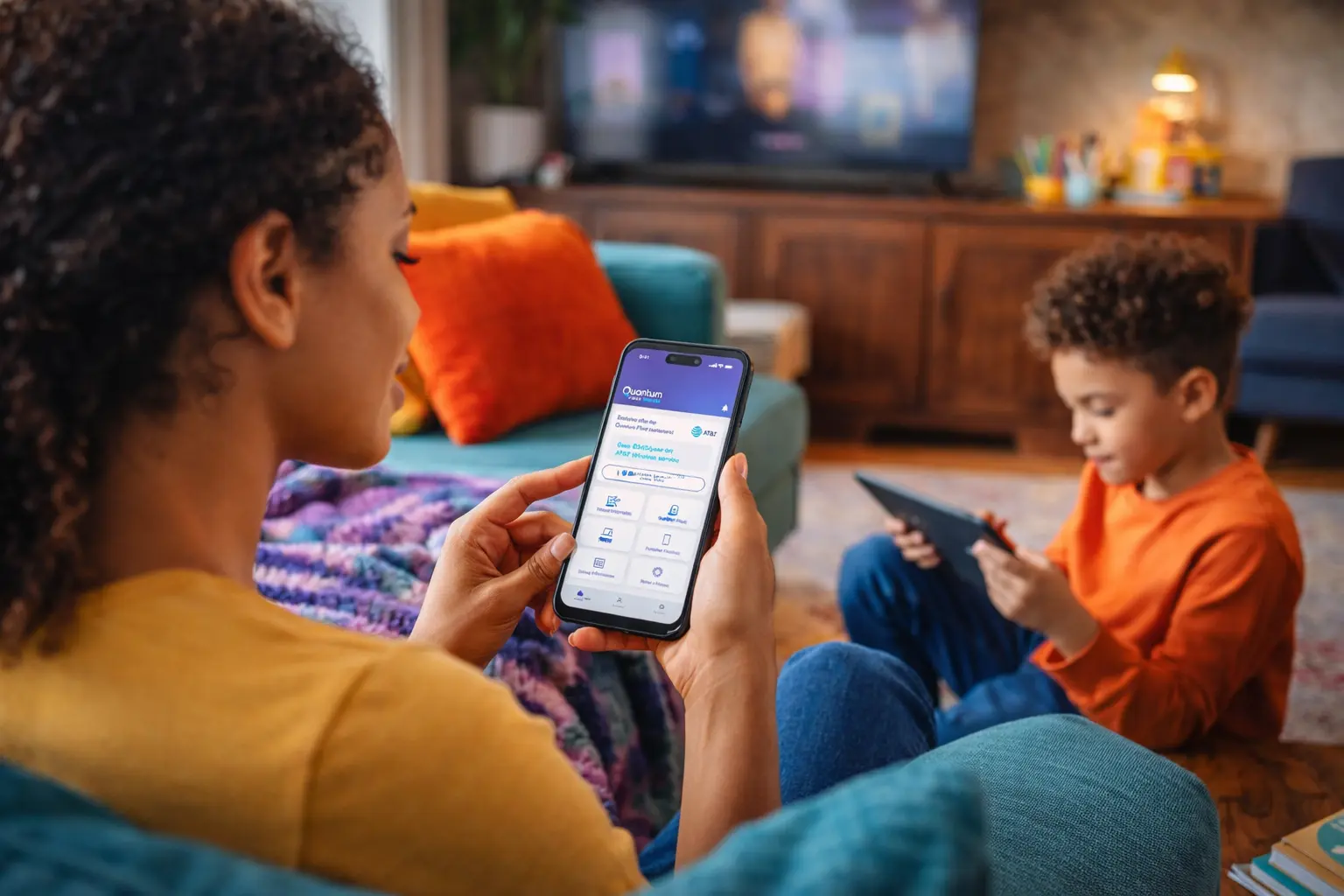


The average U.S. household has 21 connected devices, with laptops for remote work and school, security systems, smart lights, video game systems, elder care devices, and more all vying for connectivity, speed, and security. After investing in the components of a smart home Wi-Fi system, it can be frustrating when devices lag despite having a fiber connection.
But fiber internet only provides the capacity for your IoT devices to work smoothly. Your router acts as the traffic controller, determining which devices get access to the fastest highway lanes. You can control those decisions by swapping plug-and-play technology with dynamic solutions that create a frictionless network at home. When everything is set up correctly, your doorbell cameras, connected light bulbs, and streaming services are designed to work together, helping support a more reliable experience—even on a Friday night.
Here’s how to fix a common bottleneck in households with high device counts.
Start with infrastructure: Wi-Fi 7 and mesh essentials
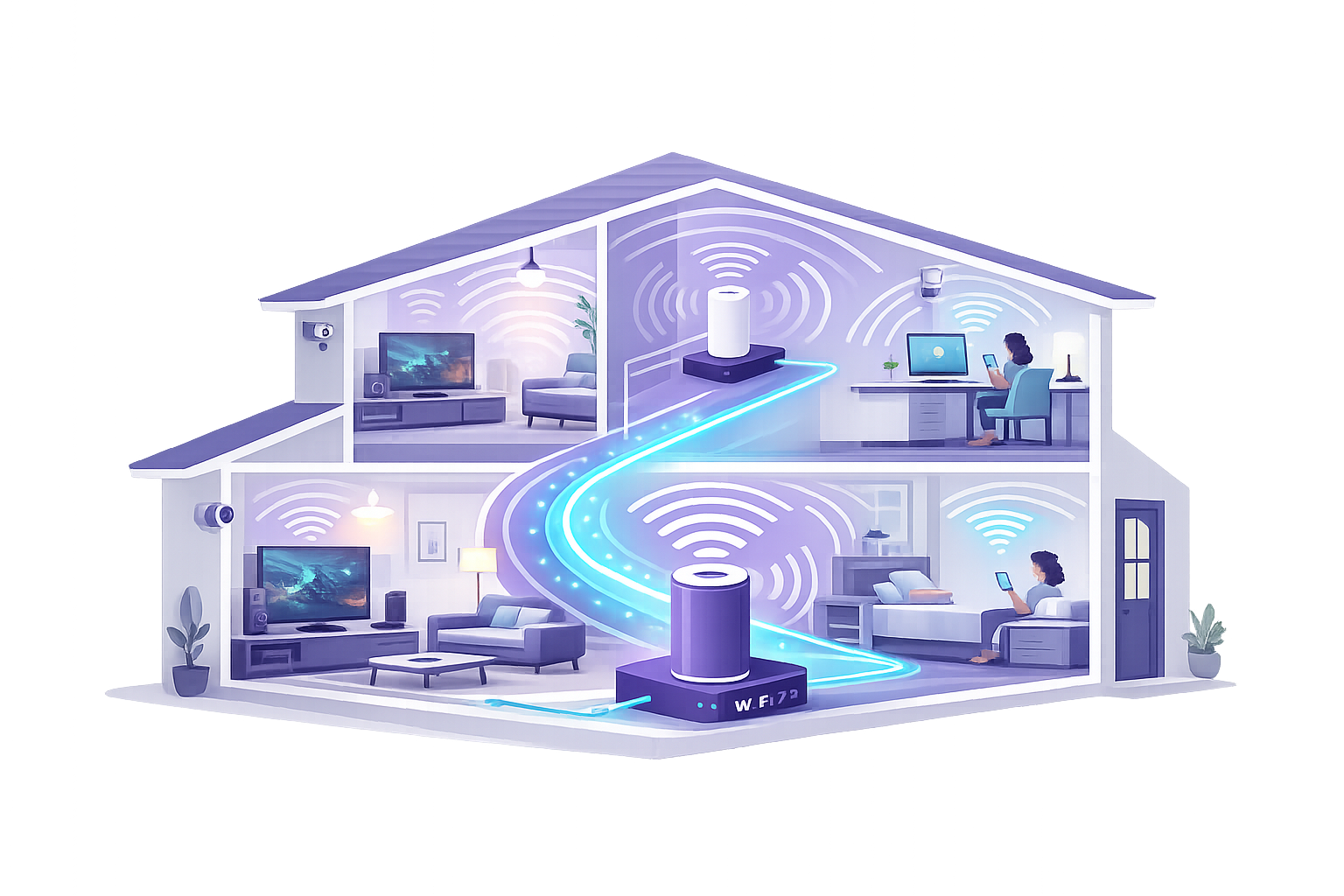
The right smart home Wi-Fi and networking tools can set you up to effortlessly manage and maximize your devices. A solid infrastructure for your home network helps you take advantage of your fiber internet speed.
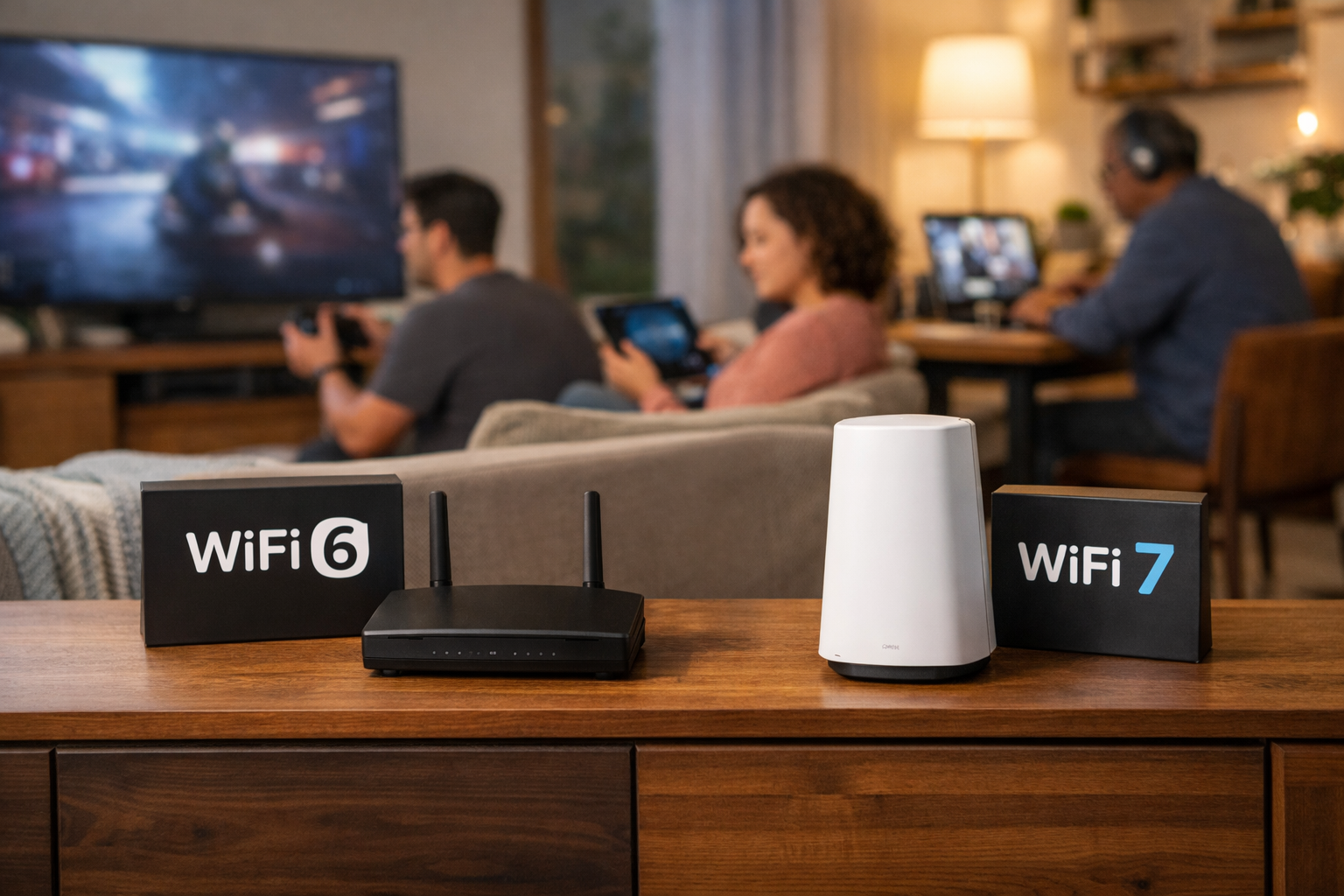
Upgrade to Wi-Fi 7/6E: A smart home Wi-Fi router that enables Wi-Fi 7 or 6E opens the doors to faster speeds and lower latency levels, especially when paired with devices that support these levels. Both types of Wi-Fi operate in the 6GHz band, which is like an HOV lane adding more capacity for high-performance devices. If your devices are newer, you can even disable legacy support by turning off older "Wi-Fi 4/5" compatibility modes. This will improve your overall network airtime.
The mesh advantage: As an option, you can install a mesh router system to help eliminate dead zones and slow signals through your house, especially if you live in a multi-story home. When you rely solely on a single router, the signal can weaken as it travels through floors and walls. You may have noticed certain areas of your home where devices don’t work as well. It’s not because of your fiber connection; it’s because of the physical barriers between your router and device. A mesh router adds extra nodes to repeat the signal and strengthen connections on each floor.
Wired backhaul: Here’s a pro tip for fiber users. Don’t use a wireless connection to connect your mesh nodes to the primary router. Instead, use a physical Ethernet cable for low -latency communication. It’s an easy way to maximize your internet speeds.
Once you’ve got the right router and supporting gear in place, you’re ready to optimize your settings. Here are three strategies to help you make the most of your fiber internet connection.
Create delivery priorities
When you have a lot of devices at home, some are probably more important to you than others. You may care more about the speed of your work laptop and your security system, for instance, than your kid’s e-book or or gaming console(even if they disagree).
An AI-enabled router lets you decide on your delivery priorities based on your own personal preferences for bandwidth usage. For instance, you can set up your router to recognize a video call or security feed as "High Priority" over a smart fridge update. It’s similar to using generative AI to manage your devices and automations through context, rather than hard and fast rules.
To find your Quantum Fiber router settings log in to the router’s admin dashboard. From there you can configure Quality of Service (QoS) settings, including setting bandwidth limits and assigning priority levels.
You can also configure your router’s Quality of Service to 80% of your fiber's total capacity to provide a "buffer" for traffic spikes. Run a speed test to find your actual download and upload speeds. Then log in to your router account and open the QoS settings. Input your maximum bandwidth as 80% of the actual speeds you measured.
Rethink your frequency band strategy
Smart home Wi-Fi frequency bands also impact internet performance—but you need to use them strategically. There are two types you may see on your router: 2.4GHz and 5GHz (or even 6GHz). While you might think that the larger number automatically performs better, each band actually has its own strength.
A 2.4GHz band is ideal for reach. Think smart bulbs and other sensors that don’t use a lot of power but need better wall penetration. It’s easy for this band to become congested, however, especially if you have a lot of low-powered devices in your home. Other items in your home may also operate on a 2.4GHz frequency that can interrupt connections, including microwaves, baby monitors, and aquariums.
A 5GHz or 6GHz band is made for speed. These “fast lanes” should be reserved for video doorbells, 4K TVs, laptops used for video conferencing, and gaming consoles. They’re not as adept at penetrating walls, but can help increase speeds, especially when paired with a mesh router system.
The good news is you can utilize both bands for different types of devices, without having to manually set up the router on your own. A dual-band router automatically incorporates band steering to switch different devices to the best frequency. You can also enable auto scanning features to switch to less crowded channels and avoid neighbor interference.
Segment devices for better security
Not all your devices need to play in the same sandbox, especially when it comes to security. That’s because your IoT devices likely have varying degrees of firmware, encryption, and other security measures. Bad actors may be able to access more secure devices by gaining network entry through more vulnerable ones. There are a couple of solutions you can employ to segment your devices and maximize protection and performance.
The first is to create a “guest network” by using a separate Wi-Fi user name or SSID for your IoT devices. This isolates them from your main data in your higher priority devices, such as laptops and phones. If a doorbell camera gets hacked, for instance, the hacker can’t jump to any devices outside that guest network, ultimately protecting devices with sensitive information on them.
Another tactic is to make sure your network is updated to the latest WPA3 encryption standards. First, make sure your router was made in July 2020 or later, otherwise it can’t be configured with the latest WPA3 updates. Once connected, you need to go into your router settings to use WPA3. It may have a hybrid version of WPA2 and WPA3 to support older devices that can’t handle the newer security protocols.
A network built for the future
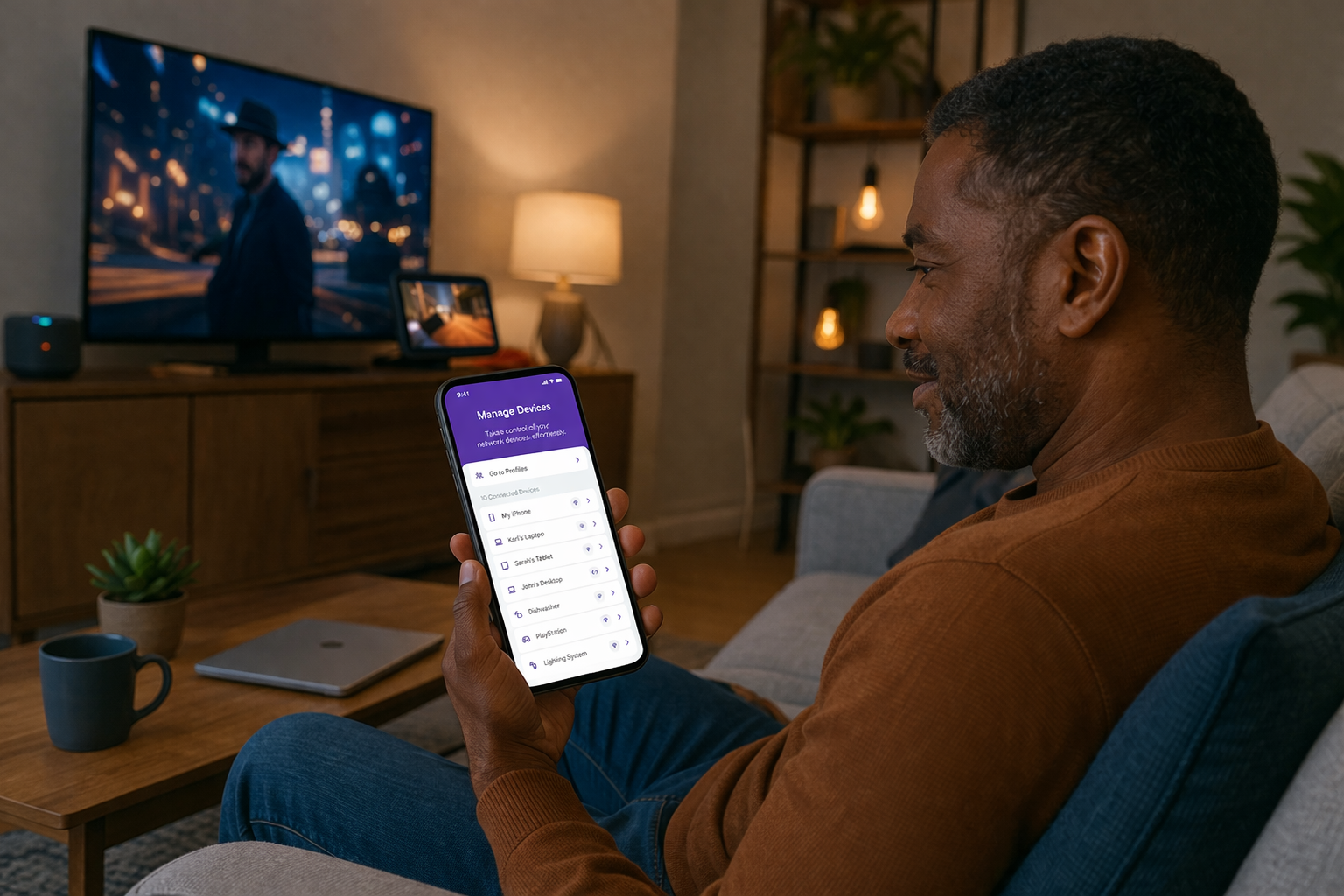
The best way to take full advantage of your smart home Wi-Fi system is to focus on the three Ps: placement, prioritization, and protection. Start with the right router with the right placement for your home’s configuration. Then use smart tools to prioritize devices on your network and segment your most vulnerable devices to a guest network to maximize protection.
Start by tapping “Devices” in your Quantum Fiber app so you can set schedules, pause access, and more.
Ready to maximize your smart home devices? Find out if Quantum Fiber is available in your ZIP Code for seamless device management.
Content Disclaimer - All content is for informational purposes only, may require user’s additional research, and is provided “as is” without any warranty, condition of any kind (express or implied), or guarantee of outcome or results. Use of this content is at user’s own risk. All third-party company and product or service names referenced in this article are for identification purposes only and do not imply endorsement or affiliation with Quantum Fiber. If Quantum Fiber products and offerings are referenced in the content, they are accurate as of the date of issue. Quantum Fiber services are not available everywhere. Quantum Fiber service usually means 100% fiber-optic network to your location but, in limited circumstances, Quantum Fiber may need to deploy alternative technologies coupled with a non-fiber connection from a certain point (usually the curb) to your location in order to provide the advertised download speeds. © 2026 AT&T Intellectual Property. AT&T and globe logo are registered trademarks of AT&T Intellectual Property. All other marks are the property of their respective owners.