
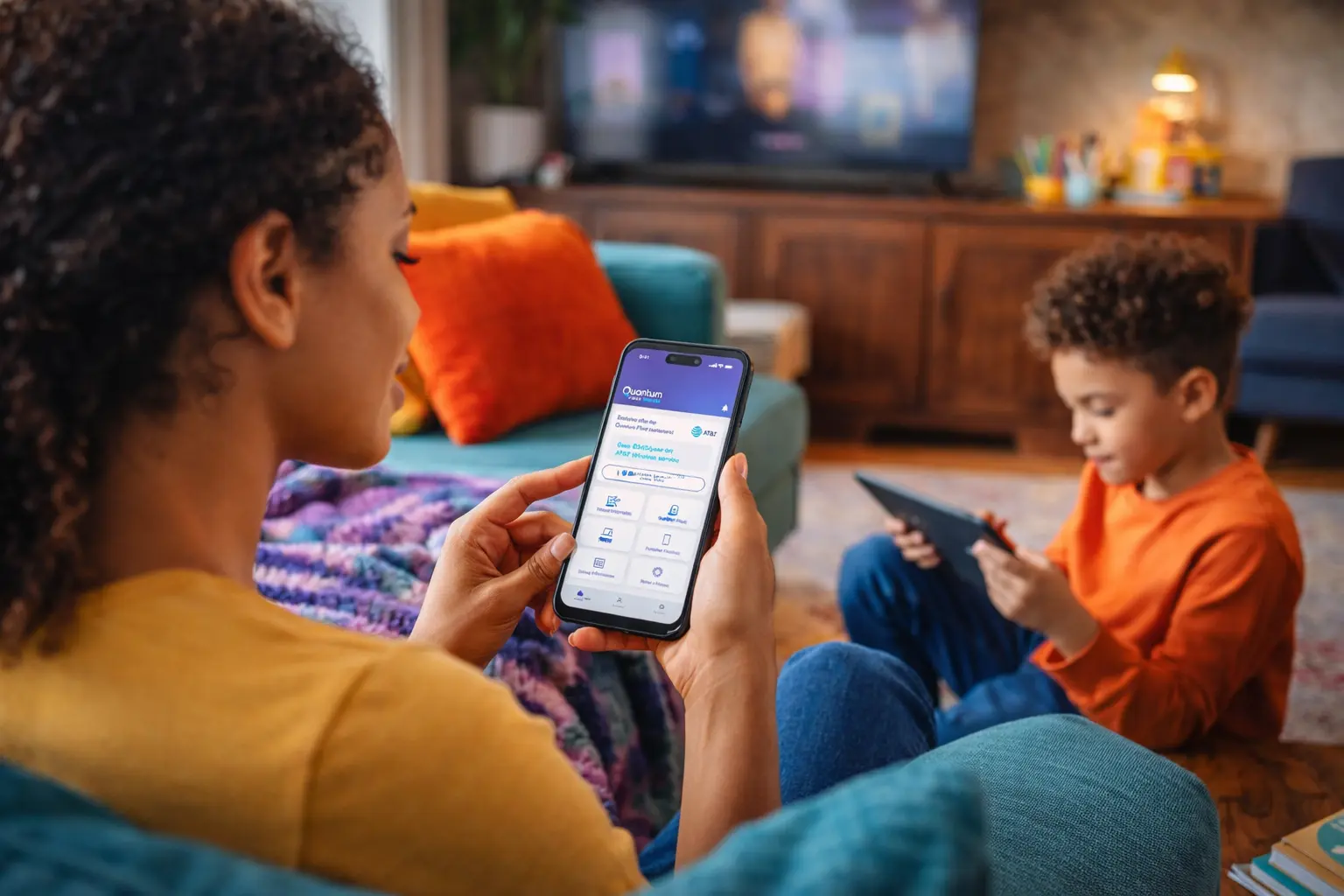
The rise of ultra-fast fiber speed has resulted in an influx of smart devices at home, including phones, tablets, laptops, gaming systems, and smart TVs. Whether used for school, work, or fun (or all three), it’s no secret that kids are spending more time online.
While there are certainly benefits to raising digitally native kids, many parents are concerned about exposure to predatory behavior, cyberbullying, and inappropriate content. But less than half of parents use internet parental controls to give their children’s devices safety guardrails. After all, it can be confusing to know where to start and how stringent to be with online oversight.
The best mindset to take is one of digital mentorship rather than running a spy operation. Start with your Quantum Fiber from AT&T app, which serves as your central dashboard for family safety. Then add in other internet monitoring best practices to feel confident that your kids are safely exploring the web.
The "who and what": Profile-based management
Implementing parental controls for the internet starts with managing the devices themselves. You can create individual profiles within your parental control app to manage each user separately. For instance, your teen’s laptop will likely need different filters than your toddler’s tablet.
Once your fiber internet is installed, start by creating a profile for everyone in your home based on default settings. In the Quantum Fiber app, you can choose from:
- Adult (18+)
- Teen (13-17)
- Child (Under 12)
Once each family member has a profile, add their devices. In addition to the default settings, you can customize settings to block or allow specific websites and apps when connected to your home internet. The quick filters are a great starting point, and then you can add different personalization based on your family’s needs. Just remember that these controls only apply to devices connected to your home Wi-Fi network, not your mobile network.
Protecting the "front door": Security & content filters
Once you have basic security guidelines in place through parental controls, it’s time to look at other ways to protect your family’s devices from hackers and other bad actors. Malicious websites are one of the most common entry points, so it’s important to have multiple security layers to protect them. Quantum Fiber Wi-Fi has built-in protection to filter and block these websites before they reach any connected device.
You can also use the app’s content restrictions section for one-tap blocking based on specific categories. For instance, you may block explicit content and gambling sites on all your kids’ devices but allow online email and games for your teens.
A final strategy is to turn on “safe search” filters for search engines like Google, Bing, and YouTube. Google’s Family Link app, for example, lets you control settings for your kids so they can’t turn off the safe search feature directly from their device.
Balancing time: Schedules and “internet pausing”
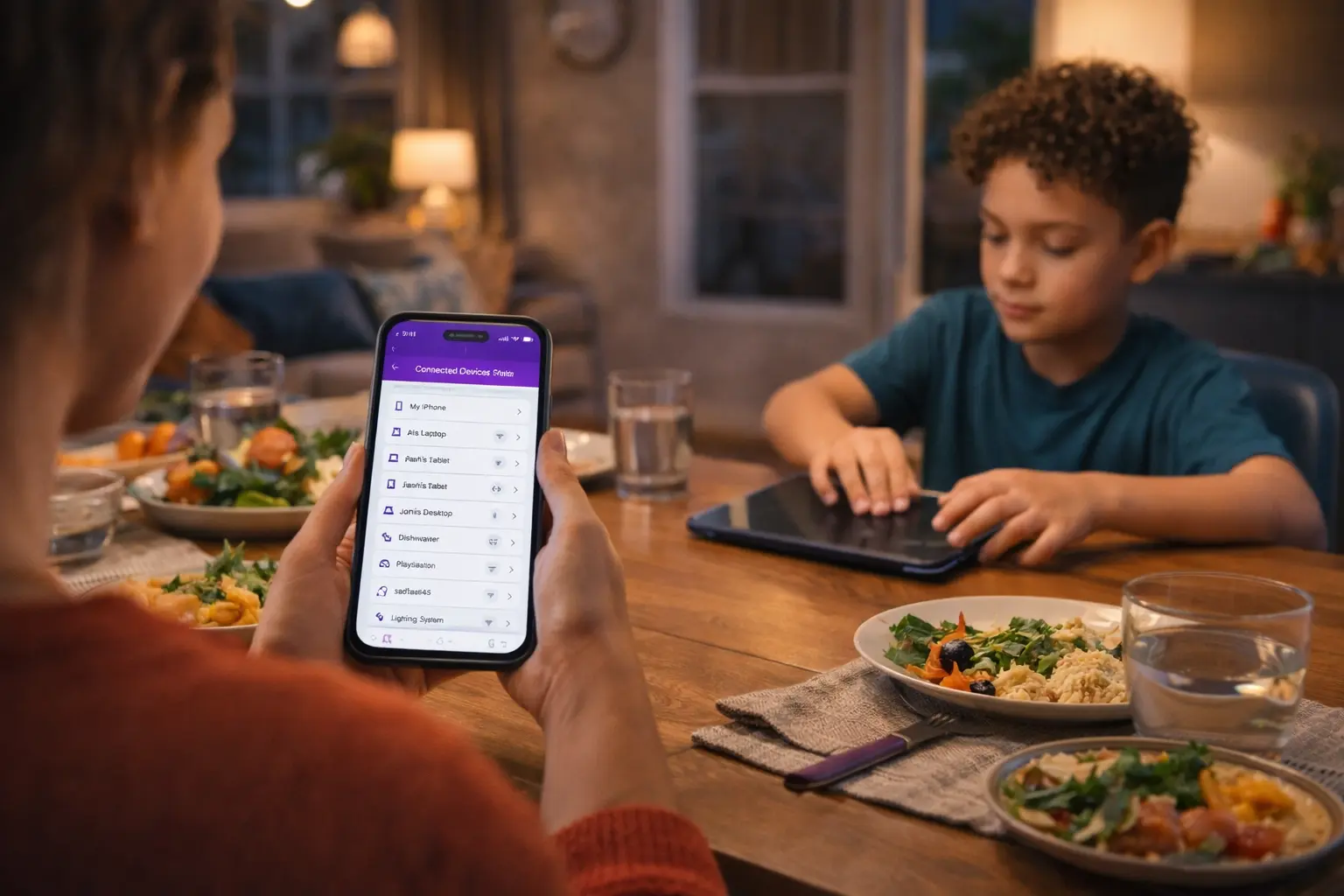
Even with internet parental controls in place, it’s also important to track bandwidth usage based on access schedules you put in place. Instead of arguing over whether your child is off their screen, you can implement built-in schedules.
Start with automated “off” times for school nights to ensure devices don’t interfere with your child’s sleep. Research has shown that any type of screen time directly before bed results in less sleep and greater feelings of tiredness in the morning. Let your kid know what time device access will be cut off and use your network app to enforce the schedule.
You can also create custom routines to reduce device-related distractions during certain times of the day. For instance, you can designate “Homework Time” during the school year and only allow access to educational sites. You could also add restrictions during “Family Mealtime” and pause all Wi-Fi. If you ever need to remove internet access automatically, simply go to the parental controls app and hit the pause button on individual profiles.
Learning how to track bandwidth usage for your kids doesn’t have to be a challenge when you have the right tools. Just remember to be upfront with them so they know what to expect. Forty percent of parents and teens report regular arguments over screen time. But creating clear rules and guidelines helps to set expectations and reduce conflict.
Beyond the app: Building digital trust
As you implement parental controls for the internet and create schedules around when your kids can and can’t get online, remember to keep them in the conversation. Rather than taking an authoritarian approach, talk about the reasons for these restrictions. Use the metaphor of riding a bike and liken parental controls to a set of training wheels for responsible web and app use.
Review activity reports within your app to see where your kids are spending time online. It can be a great conversation opener, especially if they’re on one website or app for hours at a time. Ask what makes it so engaging. That way you don’t sound accusatory but genuinely interested in their lives. The good news is that 89% of kids say they feel comfortable talking to their parents if something makes them feel unsafe.
Make sure you give them the opportunity to feel heard and come up with solutions together. Ongoing security updates from your high-speed fiber helps build a strong shield. Adding an open conversation about safety and expectations will add even more protection for your kids.
Keeping kids safe with Quantum Fiber

Internet parental controls are designed to give you peace of mind while maximizing online protection for your kids. From creating customized user profiles to setting up Wi-Fi access schedules based on your family’s routines, you have many resources available to help keep your kids safe while still giving them freedom to explore online.
Download the Quantum Fiber app today to get started.
Content Disclaimer - All content is for informational purposes only, may require user’s additional research, and is provided “as is” without any warranty, condition of any kind (express or implied), or guarantee of outcome or results. Use of this content is at user’s own risk. All third-party company and product or service names referenced in this article are for identification purposes only and do not imply endorsement or affiliation with Quantum Fiber. If Quantum Fiber products and offerings are referenced in the content, they are accurate as of the date of issue. Quantum Fiber services are not available everywhere. © 2026 AT&T Intellectual Property. AT&T and the Globe logo are registered trademarks of AT&T Intellectual Property. All other marks are the property of their respective owners.