
Consider everything that’s connected to your home Wi-Fi network: computers, mobile phones, smart TVs, speakers, thermostats, cameras, appliances, lights—maybe even your door locks.
These devices all function inside a protected digital space that’s controlled by your Wi-Fi router. When configured properly, your network operates like a walled garden. When it isn’t, unauthorized users may be able to access your data, view sensitive information, and disrupt your life.
Protecting your home network can be simple. In most cases, vulnerabilities arise because settings are overlooked, forgotten, or left in their default state after installation. Weak passwords, outdated router software, and older security modes are common openings that can give unauthorized users an opportunity to enter an otherwise private environment.
Improving home network safety begins with understanding how to secure your Wi-Fi router at home. These best practices include important steps you can take to strengthen your Wi-Fi security and create a safe, reliable network at home.
Home network security and your Wi-Fi router
Your router serves as the central hub for all your online activities. Fiber internet connects to the router, which is also the wireless access point that your devices, app, and streaming services use to get online. The router has built-in security settings that control which devices can connect to it and how your data is protected.
Effective home network security starts with your router. To gauge the performance of your current network, it’s helpful to review your connection speed and responsiveness. You can also get a complete view of your home network activity and settings by using the Quantum Fiber app.
Protecting your home network from hackers
Hackers employ a range of techniques to gain access to Wi-Fi networks, including bots and automated processes that scour the internet in search of vulnerable targets. Attacks are more likely to be opportunistic than targeted, which means that a hacker’s tools quickly bypass more secure networks in favor of less secure ones.
When a vulnerability is detected, hackers can take advantage quickly. You may notice strange things with your internet connection or the way your devices or apps are performing. Sudden drops in performance, unknown devices on your network, difficulty logging in to apps or websites, or unexpected changes to your router’s settings are indicators that something may have happened.
You can easily increase your Wi-Fi network security by following a few simple steps:
- Use strong passwords
- Enable encryption
- Update your router’s firmware
- Disable unnecessary features
Strengthening security through strong passwords
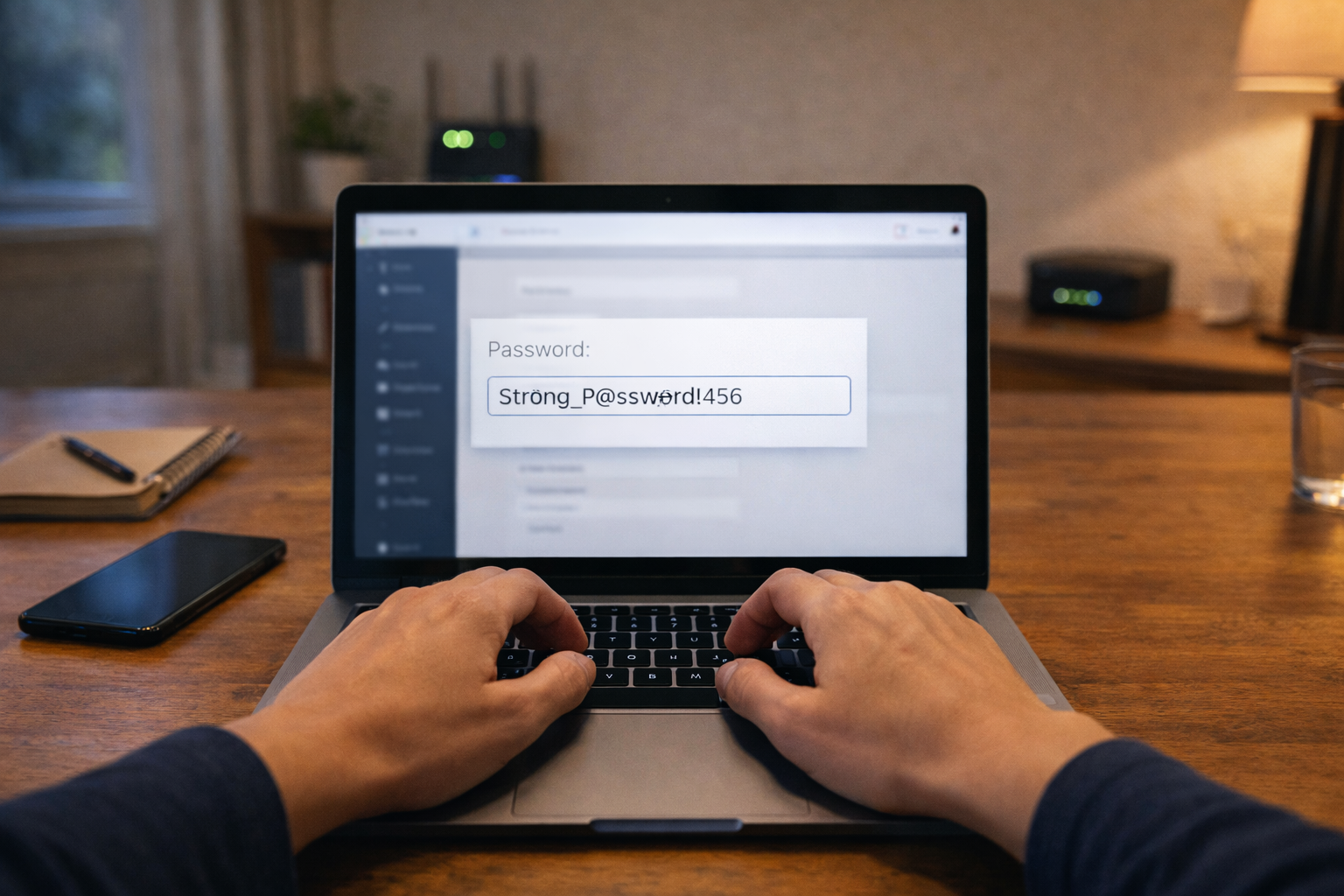
Strong passwords are the foundation of network security. Every device and application on your home Wi-Fi network relies on your router’s authentication settings to control access. If passwords are weak, reused, or left at their factory defaults, your entire network becomes vulnerable.
Replacing default credentials
Many routers still use the default username and password that came with the device. These credentials are readily available online so they’re easy to bypass and don’t provide much security. Updating your Wi-Fi password, your network name, and your router’s administrative login is one of the most effective ways to increase your network’s security.
Creating strong passphrases
Passwords and passphrases that use a variety of letters, numbers, and characters are more difficult to guess than common words. Here are some guidelines for creating strong passwords:
- Length: Aim for 12–16 characters or more. According to the National Cybersecurity Alliance, it can take a billion years to guess a 16-character password, while shorter ones may only take seconds or minutes.
- Characters: Use a variety of upper- and lower-case numbers, letters and special characters. Avoid common substitutions like @ for the letter A or 3 for E.
- Originality: Don’t reuse passwords from other accounts. Protect your router and each device on your network with a unique password. The same rule applies to the websites you use, especially those that handle sensitive information, such as banks and health-related sites.
- Neutrality: Don’t use personal information like a birthday, anniversary, or pet’s name that someone could easily guess.
- Structure: Long, meaningful phrases can be easier for you to remember and harder for others to guess, especially if they’re strengthened with special characters.
Modern Wi-Fi network security standards
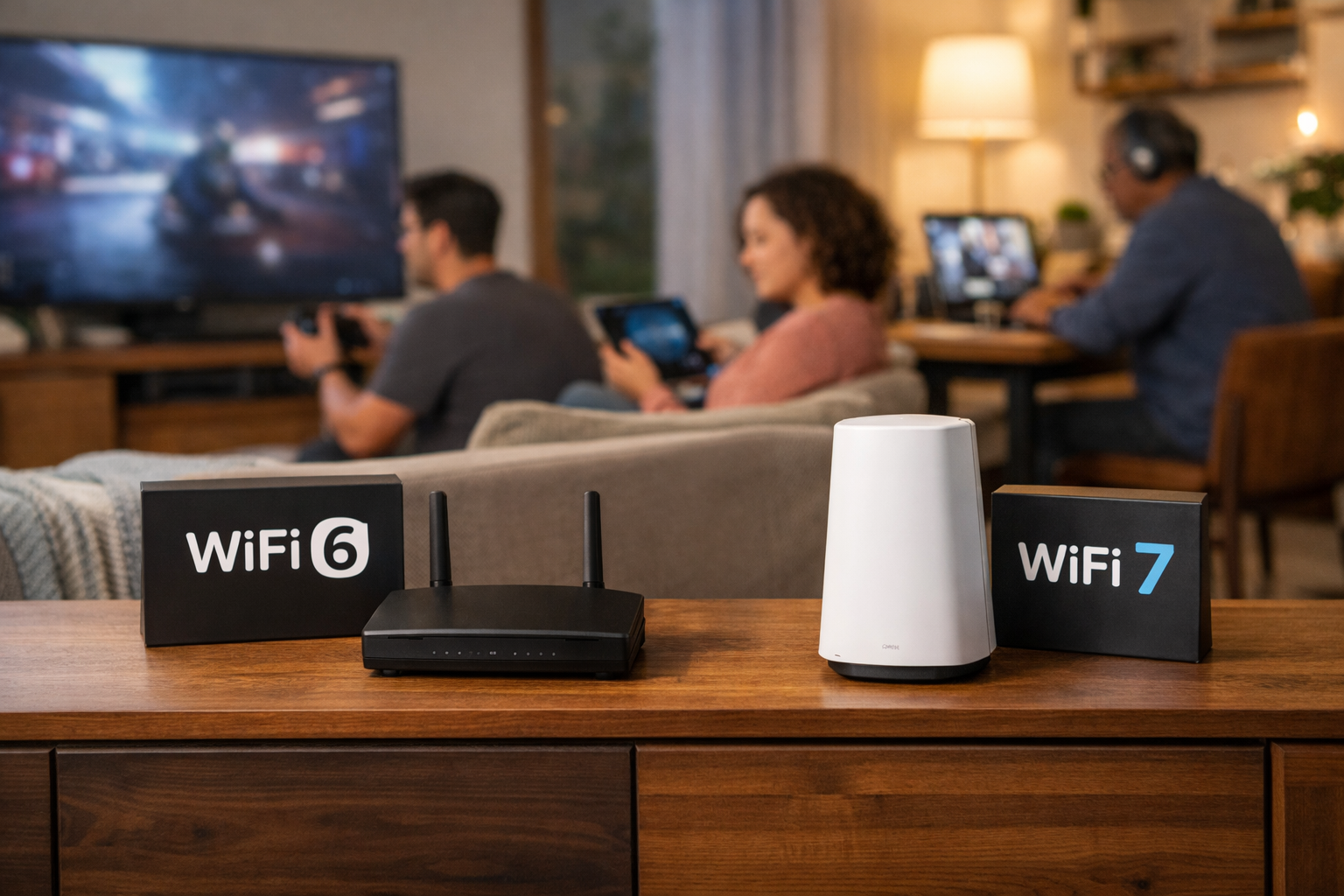
Wi-Fi network security and encryption standards have evolved over the last 20 years. Today, Wi-Fi 7 offers faster data transfer, lower latency, and more stability than older Wi-Fi technology. WEP (wired equivalent privacy) was the first encryption standard. It was replaced in 2003 by WPA (Wi-Fi protected access), significantly improving the security of data transfer and user authentication.
Today’s standard is WPA3, the 3rd iteration of the standard, and the best technology yet for protecting your network traffic and authenticating users.
Choosing WPA3 encryption
Most currently available routers offer WPA3 encryption. Enable it in your router’s setting to activate the highest-level network encryption available. Be aware that some devices, including certain home automation and streaming hardware, are not compatible with this encryption standard. If you have anything that stops working when you enable WPA3, try updating the device’s firmware or using WPA2-AES instead.
Avoiding outdated security modes
Avoid using WEP, WPA, or WPA2-TKIP as they do not offer adequate protection. If WPA3 isn’t an option, WPA2-AES offers strong network encryption across all modern devices.
Maintaining router security
Your router’s firmware is its operating system. Just as your computer or phone needs periodic updates, so does your router. Firmware updates fix vulnerabilities, improve security, and help your devices stay compatible with current standards.
Enable automatic firmware updates
The best way to keep your router’s firmware up to date is to enable automatic updates. Your router will download and install the latest firmware version as it becomes available, so you don’t have to remember to check for updates.
Turn off WPS
Your router may have a button labeled WPS. It stands for Wi-Fi protected setup and it’s used to connect devices to your network without using a password. This feature can make your network vulnerable since it creates an unsecured access path.
To disable WPS:
- Log into your router’s admin dashboard.
- Open the wireless or security settings.
- Switch WPS to Off or Disabled.
Review your remote administration settings
Some routers allow remote access to settings from outside your home. If you don’t use this feature, turning it off restricts access to your network configuration to only devices that are physically present within your network.
Additional recommendations to improve network safety
Security is strongest when there are layers of protection. A few additional steps can help you maintain a safer Wi-Fi environment:
- Rename your network (SSID) to something that doesn’t reveal personal information.
- Check your device list periodically and remove any unfamiliar items.
- Choose modern hardware that supports WPA3 and automatic updates.

Summary of recommended best practices
Improving your home network security primarily involves staying aware of your settings and making simple adjustments to maintain a secure network. Strong passwords, modern encryption, automatic updates, and turning off unused features all work together to provide a safe, reliable connection.
Learn more about fiber internet from Quantum Fiber and which of our fast internet service products are available in your area.
Content Disclaimer - All content is for informational purposes only, may require user’s additional research, and is provided “as is” without any warranty, condition of any kind (express or implied), or guarantee of outcome or results. Use of this content is at user’s own risk. All third-party company and product or service names referenced in this article are for identification purposes only and do not imply endorsement or affiliation with Quantum Fiber. If Quantum Fiber products and offerings are referenced in the content, they are accurate as of the date of issue. Quantum Fiber services are not available everywhere. Quantum Fiber service usually means 100% fiber-optic network to your location but, in limited circumstances, Quantum Fiber may need to deploy alternative technologies coupled with a non-fiber connection from a certain point (usually the curb) to your location in order to provide the advertised download speeds. ©2026 Q Fiber, LLC. All Rights Reserved. Quantum, Quantum Fiber and Quantum Fiber Internet are trademarks of Quantum Wireless LLC and used under license to Q Fiber, LLC.