
On average, Americans have more than 20 devices connected to their home Wi-Fi network. Each device, whether it’s a computer, phone, tablet, TV or smart home device, shares data on the network. When configured properly, home Wi-Fi networks are secure and convenient, so it’s easy for you to connect devices (but difficult for anyone who shouldn’t have access).
Hackers are opportunistic. They look for easy targets rather than waste time trying to penetrate secure networks.
Changing your network’s name (SSID) and password is a simple, effective way to protect your home. Together, a unique name and a strong password do two important things. First, these steps make it easier for you to identify and control your network. Second, they signal to bots and hackers that you’ve updated your security settings from the default and taken steps to keep unauthorized users out.
The simplest way to update these settings is on the Quantum Fiber app. It’s free and easy to use on an iOS or Android device. You can also make changes by logging in to your router directly.
This guide will walk you through both methods, step by step.
How your Wi-Fi name and password help protect your home
The technical term for a Wi-Fi network’s name is its SSID, which stands for service set identifier. New routers come with a default SSID that’s usually the manufacturer or brand name, along with the model number or other characters. The router publicly broadcasts this SSID so anyone nearby can select it and attempt to connect.
If you live in an urban area, take a look at the names of the available networks your computer can identify. Chances are, there will be a Linksys, NETGEAR, or Cisco network that someone has never changed. Those names are an open invitation for hackers and automated bots looking for vulnerabilities.
Just like your SSID, there’s a default password for each router brand that’s easy to find online. When a hacker sees a default SSID, their next step could be to try a default password.
Setting a strong password is the foundation of your home network’s security, which you can learn more about here. According to the National Cybersecurity Alliance, it would take a billion years to guess a 16-character password, while shorter ones can be cracked in seconds or minutes. Using a weak password means that anyone within range who can see your SSID might be able to guess it.
Here’s what to do to protect your network, your data, and your privacy.
Link to new article 154 Securing Home Wi-Fi Network
Step 1: Open the Quantum Fiber app
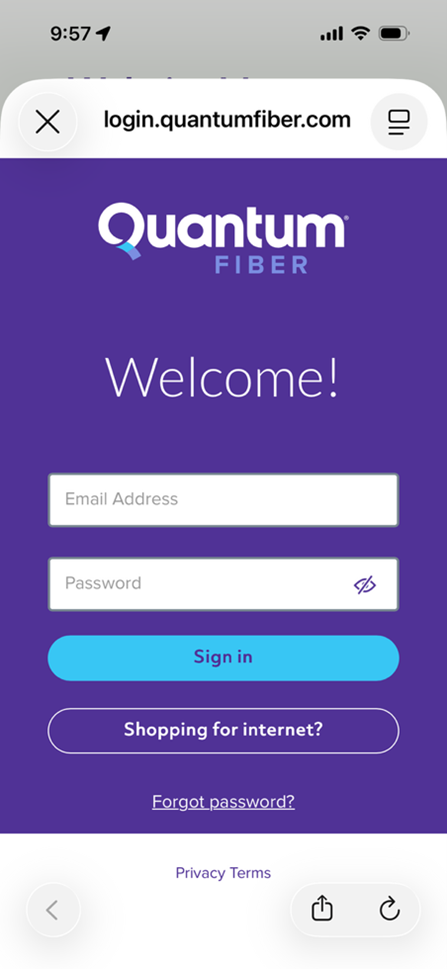
Open the app on your smartphone or tablet and sign in to manage your network.
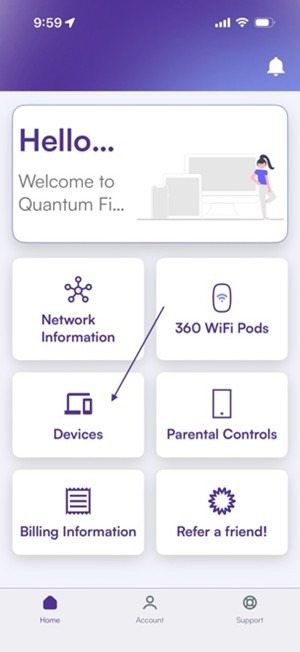
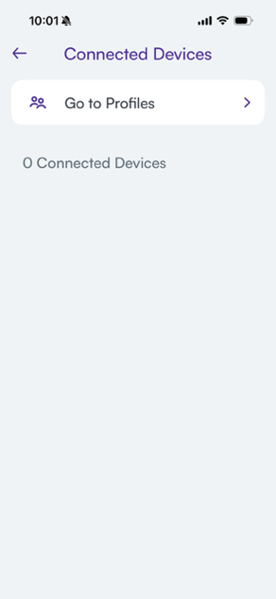
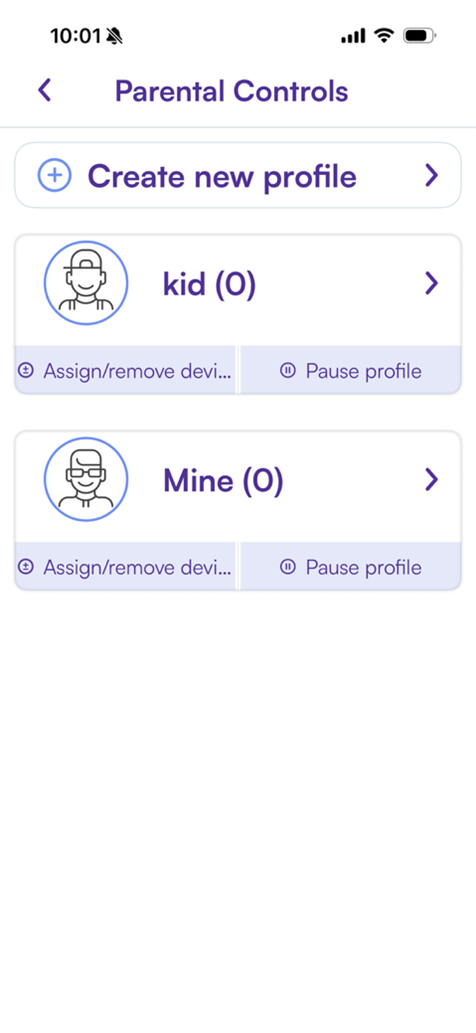
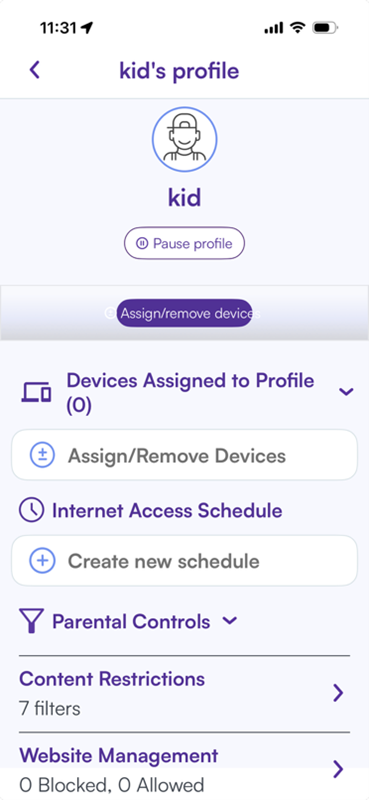
Quantum Fiber Fast Tip: It’s a good idea to review your connected devices before making updates, since each device will need to rejoin your network after you make the changes below. The Quantum Fiber app makes it easy. Just tap Devices on the main screen and select a profile to see a list of what’s connected to the network.
Step 2: Tap Network Information
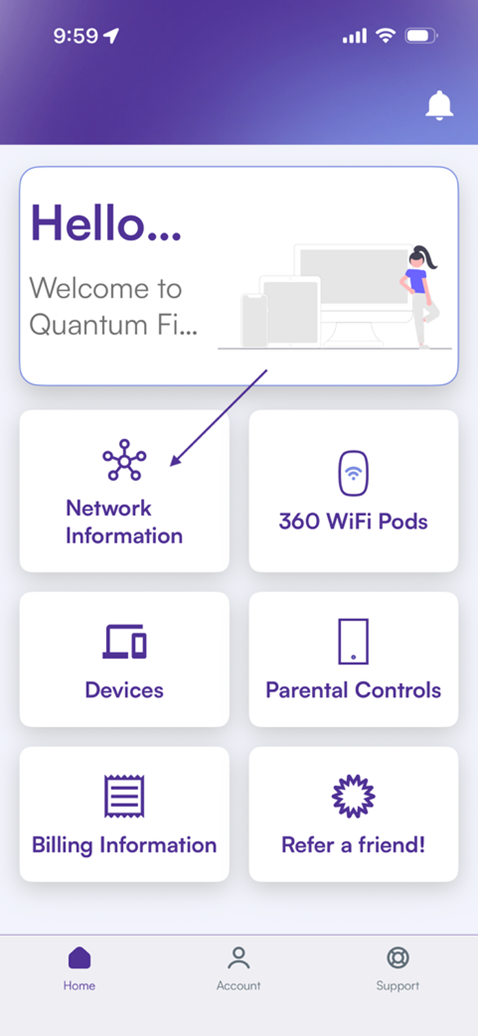
From the main screen, tap Network Information. This section shows information about your network, including your network name (SSID) and password.
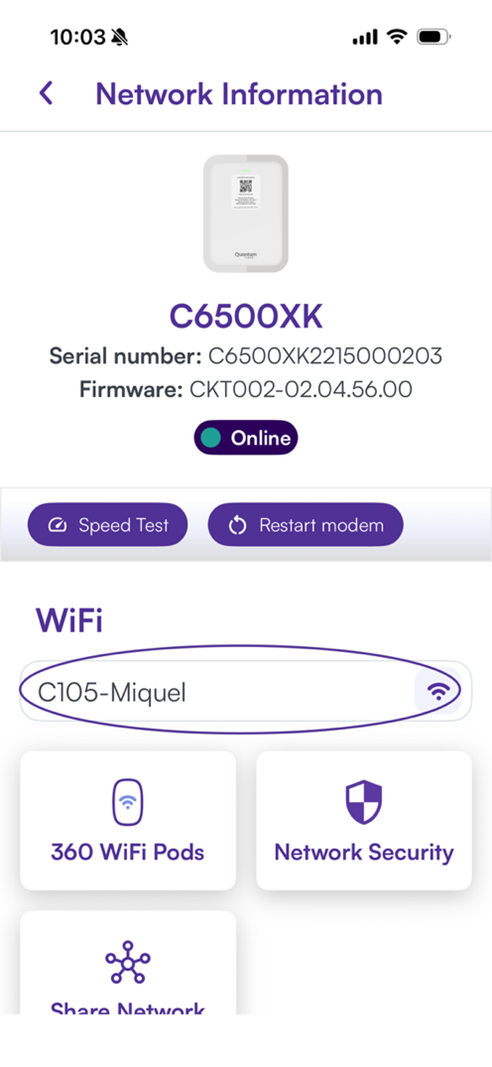
Step 3: Tap your network name.
Your current Wi-Fi network name (SSID) is listed right below the Wi-Fi header. Tap the current name to open the editing screen.
Step 4: Update your SSID
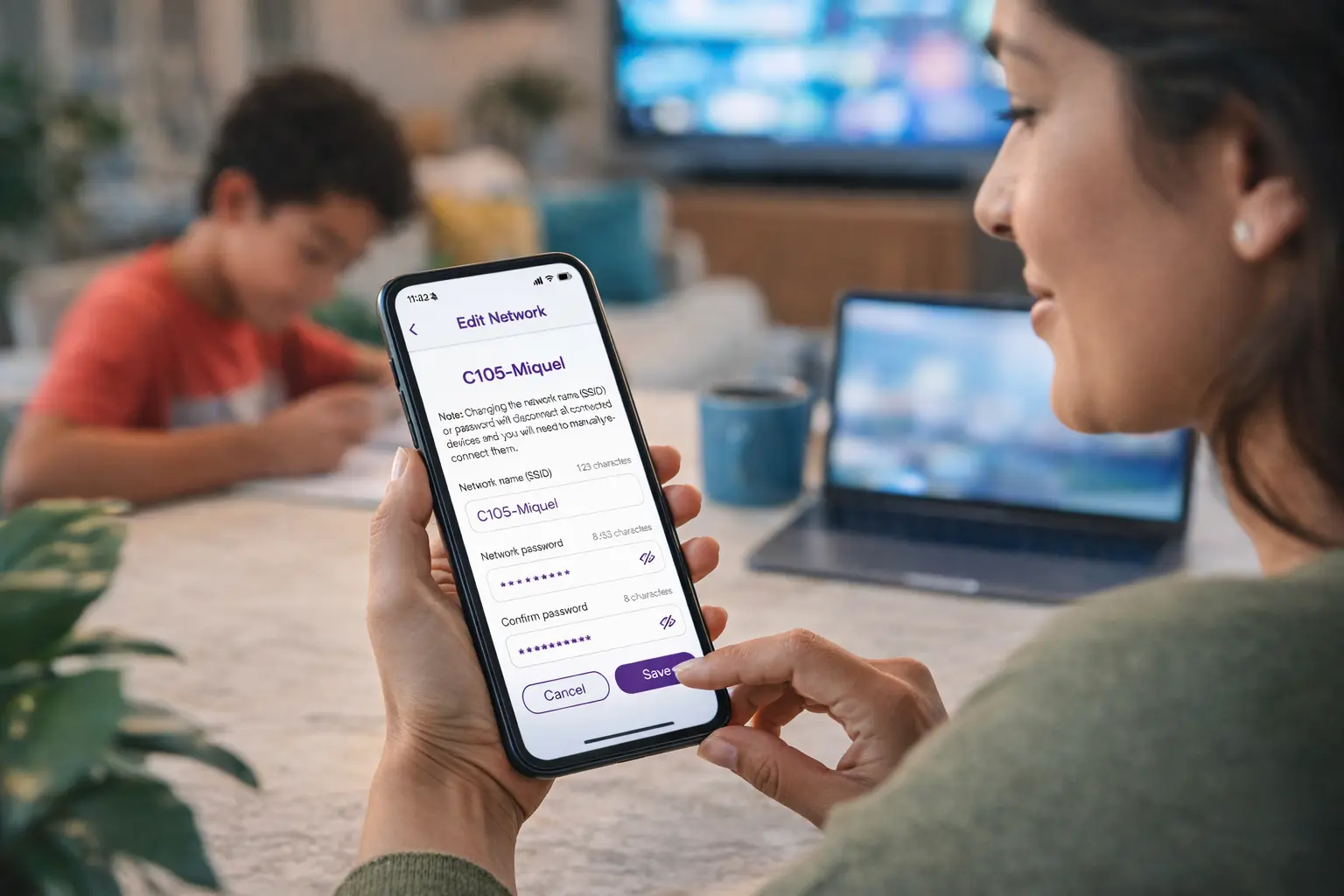
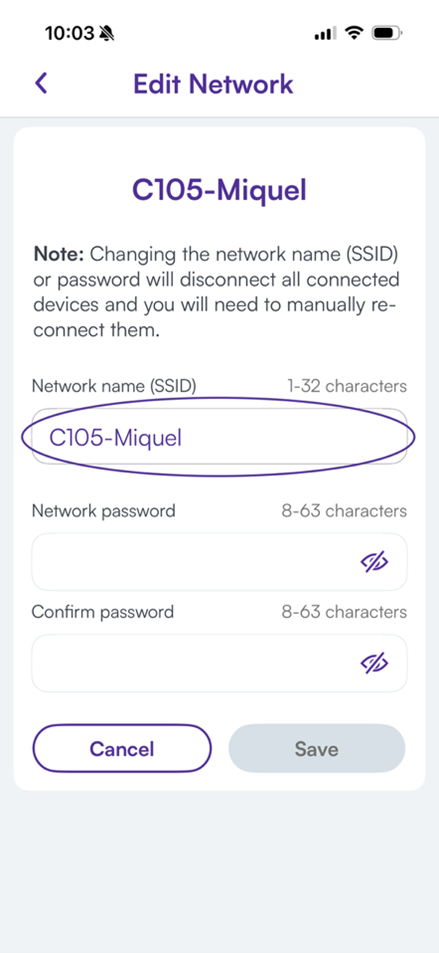
On the Edit Network screen, tap your Network Name (SSID) and enter the name you’ve chosen. Your network name can be up to 32 characters, and you can call it anything you’d like. Remember that your SSID will be visible to anyone nearby, so consider the name carefully.
Once entered, tap anywhere on the screen or hit the return button to go back to the previous screen. Your changes will appear in the Network Name (SSID) box but won’t be saved until you hit Save a little later, after updating your password.
Step 5: Change Wi-Fi password
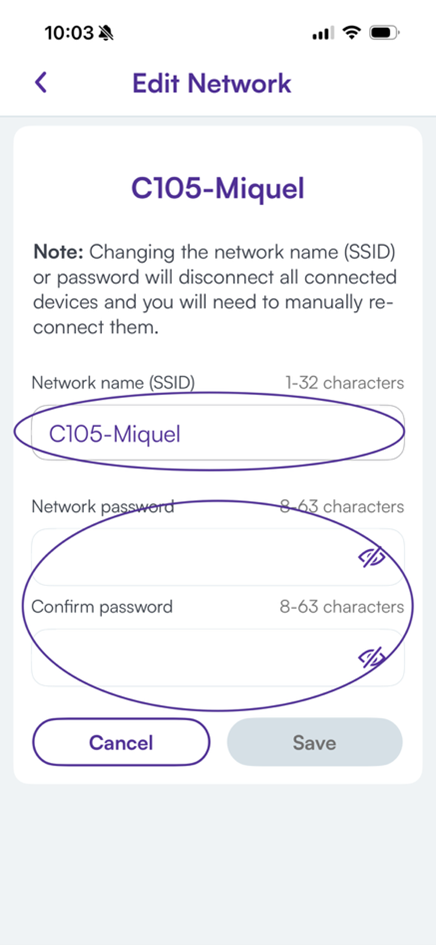
Your current password will appear as encrypted characters in the Network password box. You can reveal it by clicking the eye icon on the right side of the box. To change your password, tap on the current password, enter a new one, then confirm it in the Confirm password box.
Passwords must be between 8-63 characters. Cybersecurity experts suggest using:
- A strong password that’s at least 12 characters
- A combination of upper- and lower-case letters, numbers, and special characters
- A unique password that’s not used anywhere else
- A neutral password that doesn’t contain personal information like a birthday, anniversary, or pet’s name
Quantum Fiber Fast Tip: If you have a Windows 10 device, avoid using apostrophes (’) or quotation marks (") in your Wi-Fi password. These characters can cause connection issues on some Windows 10 systems.
Step 6: Save and apply changes
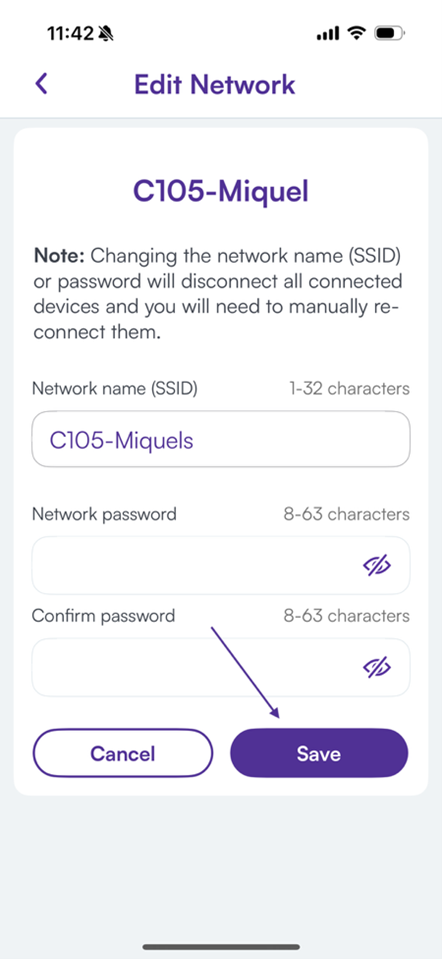
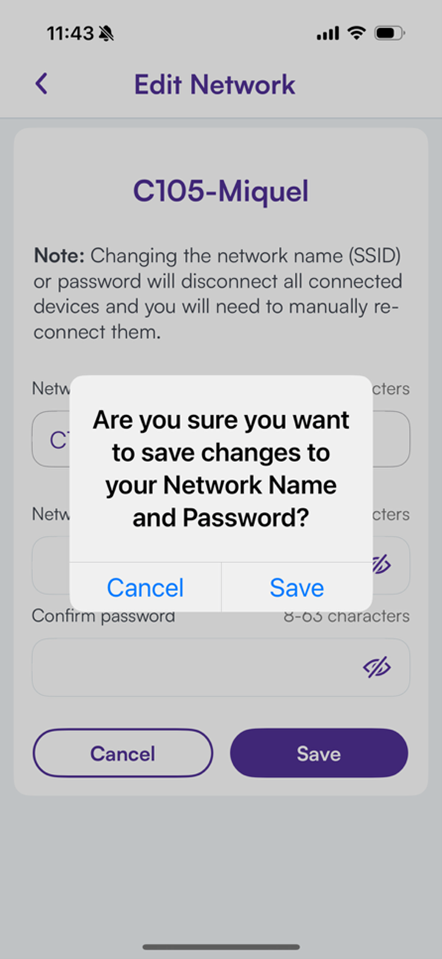
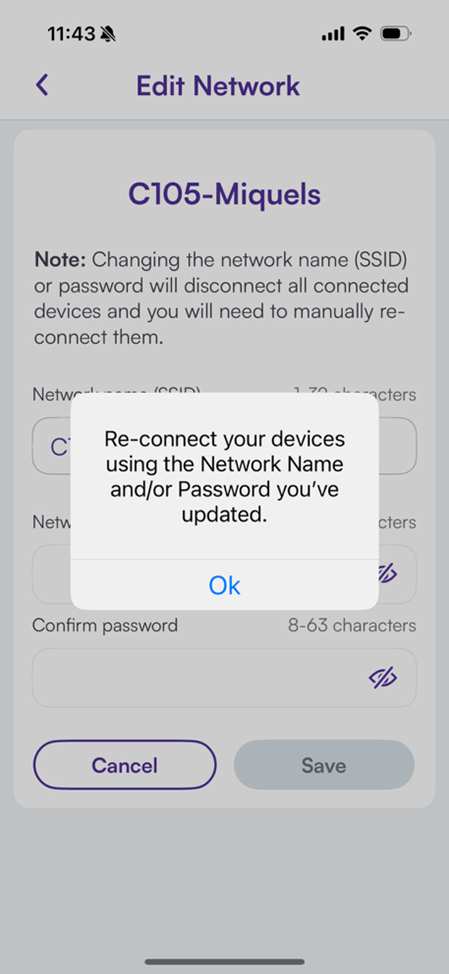
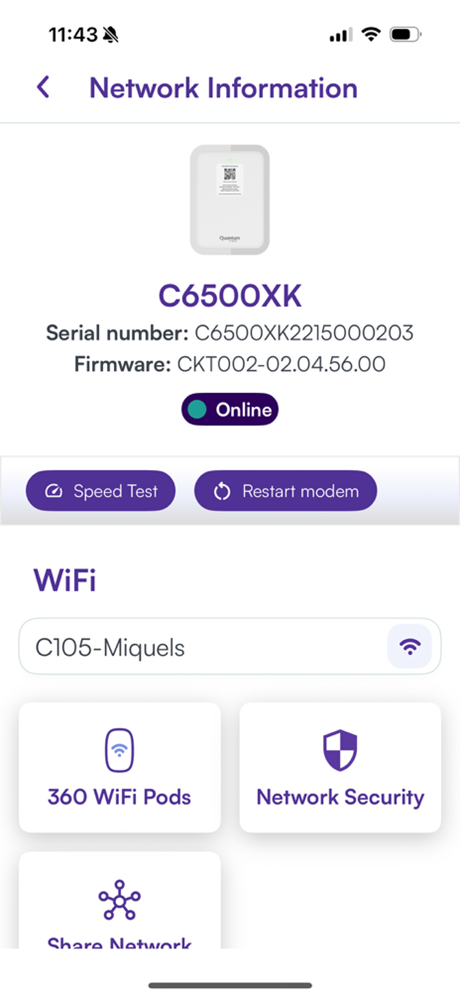
After you’ve entered your new SSID and password, click Save, then confirm on the pop-up window. After your router updates, you’ll be reminded to reconnect your devices, then returned to the Network Information screen.
Reminder: Reconnect all devices
The last step is to reconnect your devices. Select the new network on each device, then enter the password or share it from a device that’s already connected.
You may need to reconnect:
- Smartphones
- Tablets
- Computers
- Televisions and streaming devices
- Gaming consoles
- Smart home devices (cameras, lights, speakers, etc.)
Change your network using gateway modem user settings (alternative method)
All-in-one router/modems allow you to update settings by entering your device’s IP address into your web browser. Though the process is much friendlier on the Quantum Fiber app, you can change your SSID and password directly by following these steps:
- Connect a device to your Wi-Fi network.
- Open a browser and enter http://192.168.0.1 in the address bar.
- Sign in with the Admin Username and Admin Password that appear on your modem’s label.
- Select Wireless Setup in the main menu.
- Choose Wireless Security from the side menu.
- Select the option to Use custom security key, then enter and confirm your new password in the “Security Key” field.
- Click Apply to save your settings.
- Reconnect your devices.
Changing your Wi-Fi password and network name helps protect your home Wi-Fi network and helps ensure that only devices you trust can connect. It’s easy to do, especially when you use the Quantum Fiber app, and only takes a few minutes to complete.
Learn more about fiber internet from Quantum Fiber and which of our fast internet service plans are available in your area.
Content Disclaimer - All content is for informational purposes only, may require user’s additional research, and is provided “as is” without any warranty, condition of any kind (express or implied), or guarantee of outcome or results. Use of this content is at user’s own risk. All third-party company and product or service names referenced in this article are for identification purposes only and do not imply endorsement or affiliation with Quantum Fiber. If Quantum Fiber products and offerings are referenced in the content, they are accurate as of the date of issue. Quantum Fiber services are not available everywhere. Quantum Fiber service usually means 100% fiber-optic network to your location but, in limited circumstances, Quantum Fiber may need to deploy alternative technologies coupled with a non-fiber connection from a certain point (usually the curb) to your location in order to provide the advertised download speeds. © 2026 AT&T Intellectual Property. AT&T and globe logo are registered trademarks of AT&T Intellectual Property. All other marks are the property of their respective owners.