
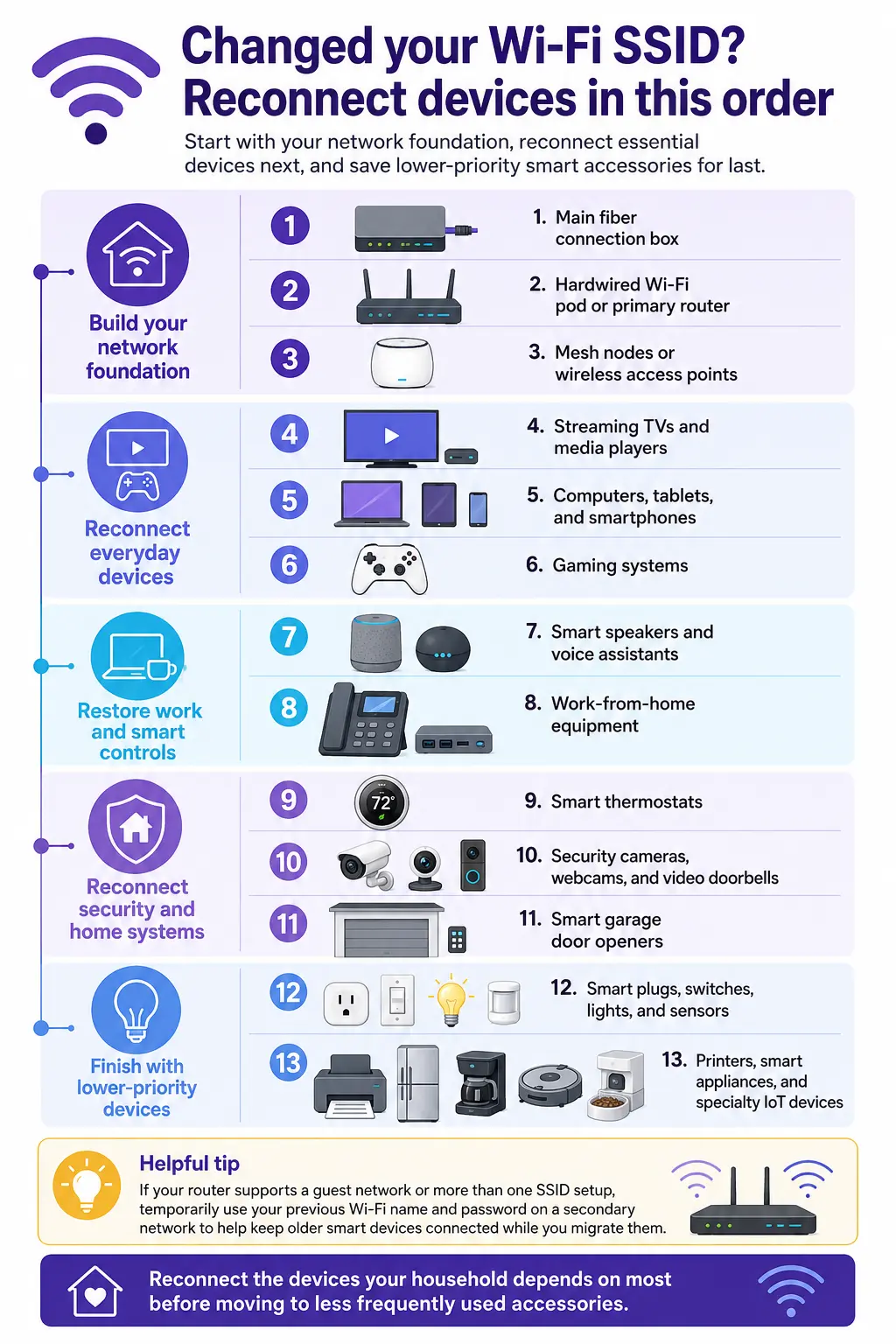
If you changed your Wi-Fi SSID (the unique name assigned to your Wi-Fi network), reconnecting your household tech in a strategic sequence helps minimize downtime and frustration. Starting with your primary gateway, move next to primary work computers, followed by mobile devices, and finally your smart home automation. Utilizing advanced Wi-Fi technology helps keep your household smoothly connected during network updates.

If you changed your Wi-Fi SSID (the unique name assigned to your Wi-Fi network), reconnecting your household tech in a strategic sequence helps minimize downtime and frustration. Starting with your primary gateway, move next to primary work computers, followed by mobile devices, and finally your smart home automation. Utilizing advanced Wi-Fi technology helps keep your household smoothly connected during network updates.
Have you recently updated your Wi-Fi SSID (service set identifier, the unique name assigned to your Wi-Fi network) to help secure your home network from cyberthreats, or did you recently migrate to a high-performance fiber internet provider? Updating your wireless credentials is a crucial step for maintaining modern digital safety. The outlines how customizing your network name helps secure your private data. However, getting your entire household back online can feel like an overwhelming task. If your home is packed with connected gadgets, inputting new security keys on every screen can become a tedious chore. In fact, if you manage an extensive ecosystem of smart lightbulbs and smart plugs, this migration process might take a few days to complete fully.
To make this transition as smooth as possible, a strategic order of operations is essential. This guide provides a skimmable, numbered sequence to reconnect your technology with minimal hassle. Before you begin, consider a smart safety net: if your router supports a separate guest network, you can configure it with your old network name and password. This temporary transition network acts as a bridge, allowing your smart devices to remain online while you migrate your hardware. Remember, the best reconnection path is highly personal. Depending on your household, certain device categories may be much more important to connect first. Let us explore the baseline order to help you master your network migration.
Key takeaways
Transitioning your household to a new Wi-Fi network is easy when you follow a strategic order. Here are the main strategies to help keep your migration organized and virtually stress-free.
- Establish your physical network core first, helping ensure your primary gateway is active before connecting individual clients.
- Prioritize primary remote work and entertainment systems next to help minimize disruptions to daily schedules.
- Use a temporary guest network with your previous network credentials to help keep older smart accessories online while you gradually transition devices to the new SSID over a few days.
- Isolate smart home items onto a dedicated signal to help protect your primary devices from potential security vulnerabilities.
Table of contents
- (Steps 1-3) Establish your wireless backbone first
- (Steps 4-6) Prioritize high-traffic screens, productivity tools, and entertainment
- (Steps 7 and 8) Connect your virtual assistants and critical work gear
- (Steps 9-11) Secure your perimeter with climate controls and smart cameras
- (Step 12) Migrate smart plugs, switches, lights, and sensors gradually
- (Step 13) Finish with office utilities, appliances, and specialty accessories
- Keep your modern smart home running beautifully
1. Establish your wireless backbone first
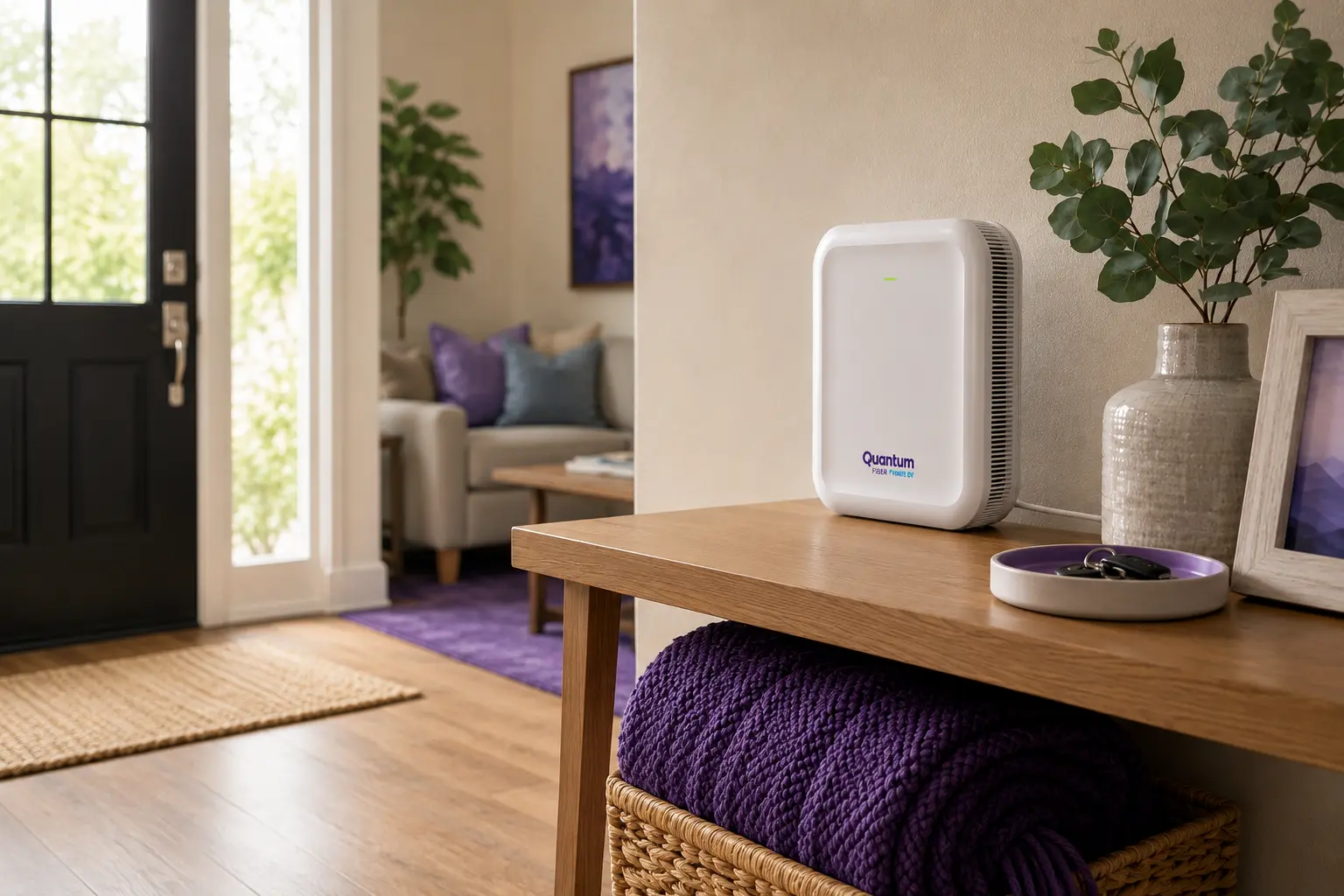
Before you link a single mobile screen or smart thermostat, you must ensure that your physical signal is fully established and broadcasting clearly. Your physical network core—comprising the incoming line, your main fiber connection box, and the primary hardwired Wi-Fi pod, which many people commonly call “the router”—forms the foundation of your entire wireless ecosystem. If you are using third-party hardware, such as mesh nodes or wireless access points, these need to be powered on and linked to your primary gateway immediately after the main router is active. Establishing this core first helps minimize the potential for troubleshooting issues, helping to ensure that your secondary nodes can properly extend your wireless coverage throughout the space.
| Network core element | Connection step | Primary function |
|---|---|---|
| Main fiber connection box | Step 1 | Establishes the incoming internet signal at your location |
| Hardwired Wi‑Fi pod | Step 2 | Acts as the primary router and broadcasts the new SSID |
| Mesh nodes / access points | Step 3 (if available) | Extends wireless coverage to help minimize dead spots in larger layouts |
2. Prioritize high-traffic screens, productivity tools, and entertainment

Once your core wireless network is active, the next step is to link the devices that handle your daily communication, work, and entertainment. This block covers your primary streaming TVs, personal computers, tablets, smartphones, and your gaming platforms.
For active households with remote workers, bringing computers online immediately helps ensure that professional schedules and video conferences remain virtually uninterrupted. Getting your smartphones and tablets connected early is also highly practical, allowing you to open your network management app and monitor the rest of your device migration.
Connecting your main streaming screens and gaming platforms early keeps the household entertained while you configure more tedious devices. This approach also allows you to run a Quantum Fiber speed test tool on a primary computer to verify that your updated wireless connection is performing beautifully.
For a smooth transition, we recommend pairing these high-traffic devices in this exact sequence:
Step 4. Streaming TVs: Bring your main television or media player online to restore family entertainment options quickly.
Step 5. Computers, tablets, and phones: Link your primary productivity screens to re-establish secure communications and network visibility.
Step 6. Gaming systems: Reconnect your consoles to restore access to online gaming networks and cloud-save backups.
3. Connect your virtual assistants and critical work gear
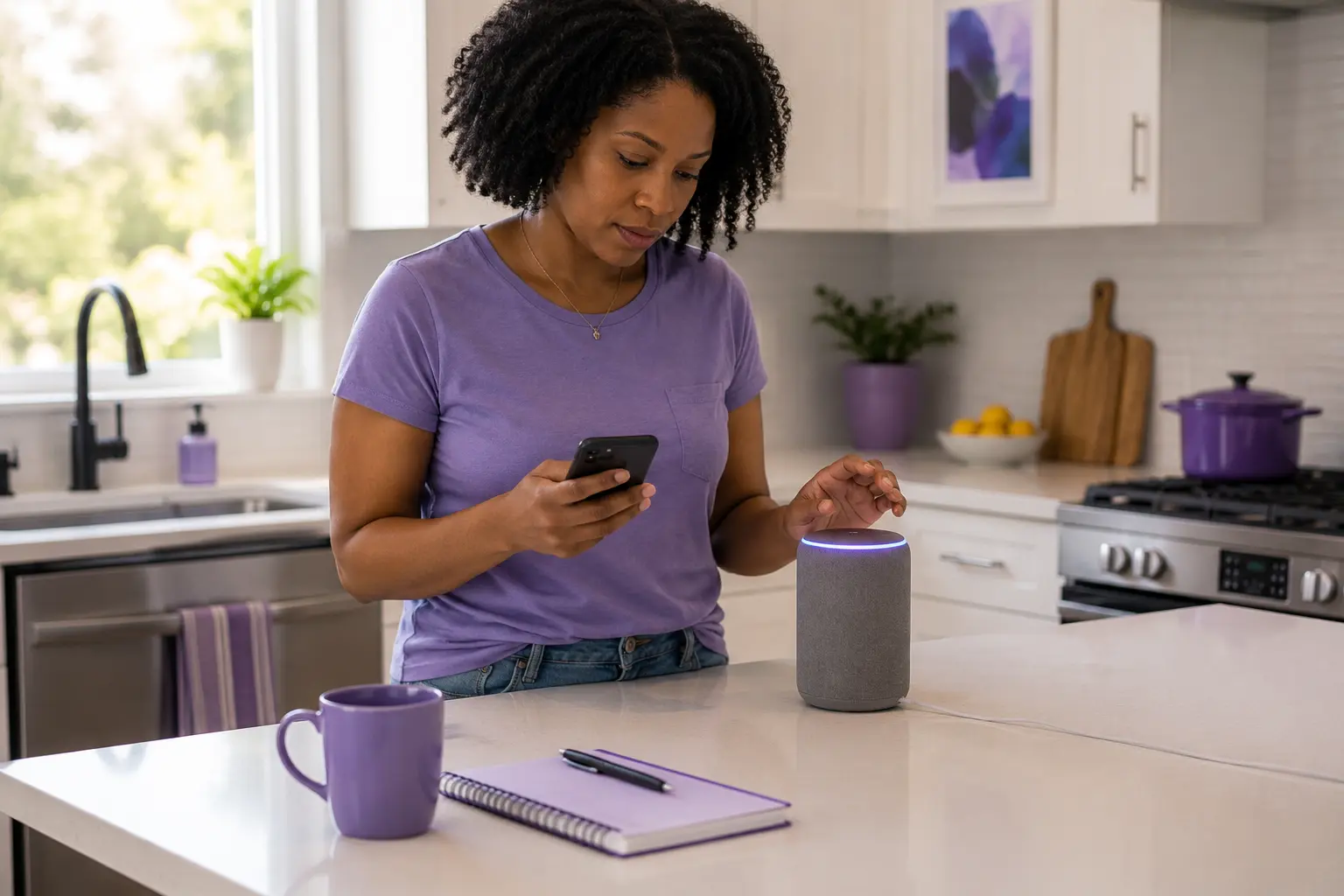
Next, focus on bringing your voice-activated systems and dedicated office hardware online. This phase covers your smart speakers and voice assistants, alongside specialized work-from-home equipment such as VoIP (Voice over Internet Protocol) phones, hardwired docks, and VPN (virtual private network) gateways.
Many households rely on smart speakers to manage daily schedules and coordinate automated routines. Because these assistants often serve as the voice interface for other smart accessories, establishing their connection early makes subsequent smart home pairing much more convenient. Connecting your dedicated business internet for home office equipment right after your personal screens helps guarantee that your virtual workplace is fully secured and operational. This sequence helps minimize administrative downtime, helping to ensure that you can handle professional tasks.
| Workspace & control hardware | Connection step | Why connection timing matters |
|---|---|---|
| Smart speakers and voice assistants | Step 7 | Acts as a central control interface for other smart home accessories |
| Work-from-home equipment | Step 8 | Re-establishes secure enterprise connections for remote professionals |
4. Secure your perimeter with climate controls and smart cameras
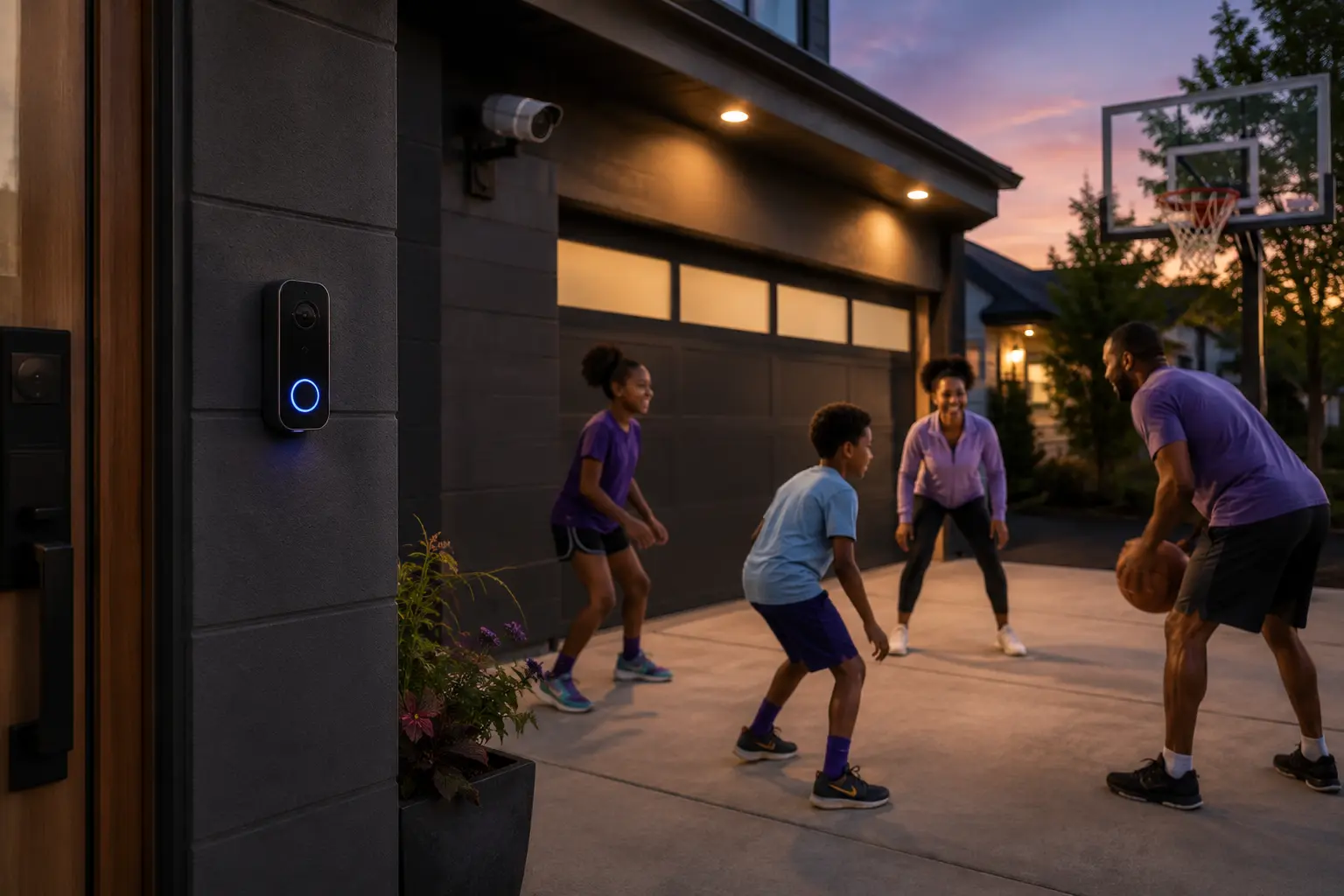
With your core computers and entertainment platforms online, it is time to reconnect your primary home security and environmental automation. This category includes your smart thermostat, web cams, security cams, smart video doorbells, and your smart garage door opener.
Bringing your climate control systems and smart thermostat online early helps maintain a comfortable home environment. Following this with your security cams and smart doorbells helps ensure that your perimeter monitoring is fully restored. Linking your smart garage door opener completes this phase, providing secure, remote access control for your property. By prioritizing these structural systems, you help secure your living space and preserve peace of mind during your transition.
- Smart thermostat (Step 9): Restores your automated heating and cooling schedules to help keep your environment regulated.
- Web cams / Security cams / Smart doorbell (Step 10): Helps protect your household by restoring immediate remote visibility and motion alerts.
- Smart garage door opener and smart locks (Step 11): Re-establishes secure entry controls and real-time status tracking through your mobile app.
5. Migrate smart plugs, switches, lights, and sensors gradually (Step 12)
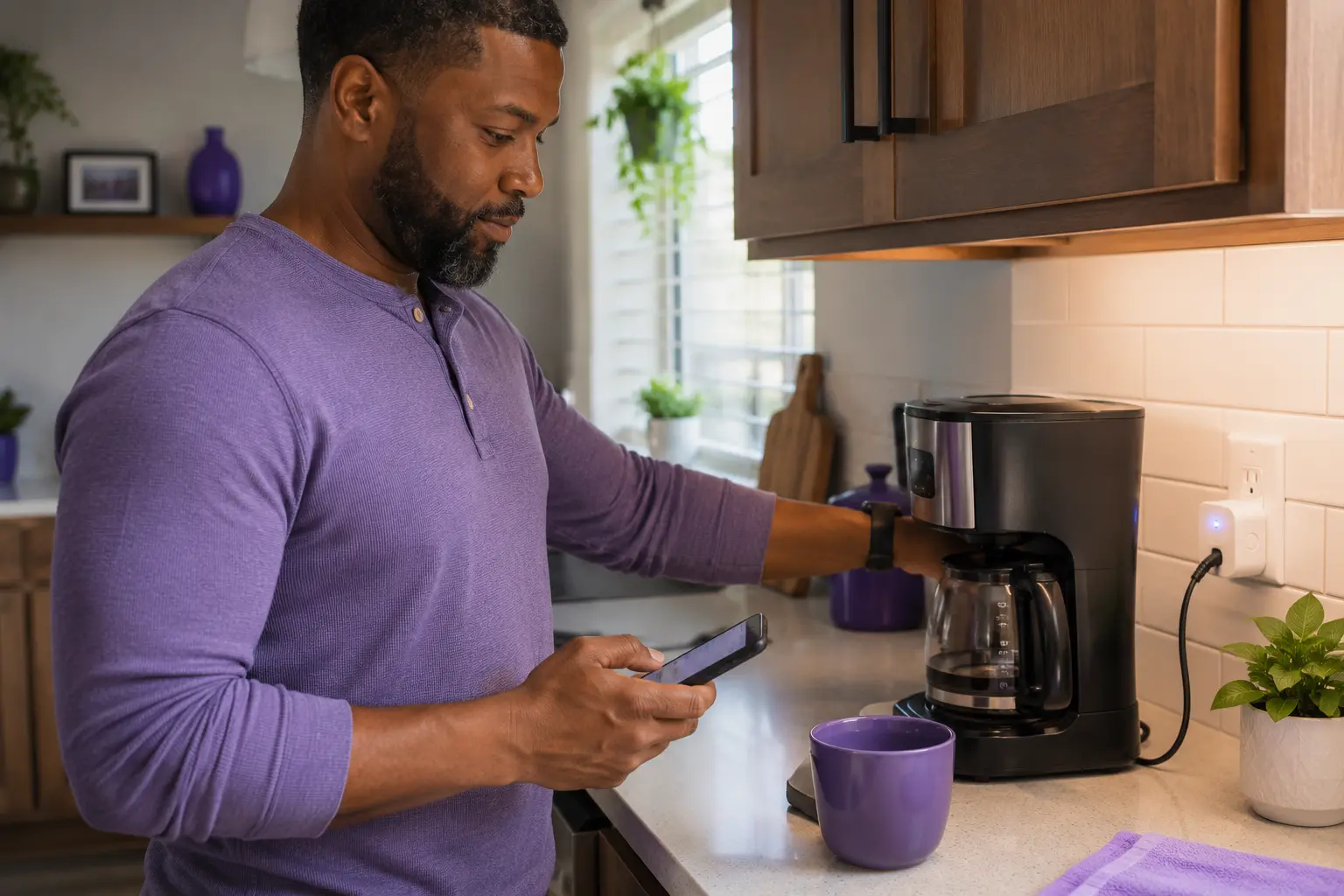
The most intensive phase of any network update involves migrating your automated accessories. This group includes smart plugs, wall switches, smart lightbulbs, and security sensors. Because many of these smaller IoT (internet of things) devices lack physical screens, pairing them requires using dedicated companion apps to link each hardware piece individually.
If you manage an extensive ecosystem of smart plugs and smart lightbulbs, this migration process might take a few days to complete fully. To manage this safely and avoid extreme frustration, it is highly recommended to spread this task out over a few days. Alternatively, you can utilize the guest network bridge strategy, keeping previous credentials active on a separate wireless signal so your automated lights and sensors remain operational until you have the time to configure them on your primary secure network.
6. Finish with office utilities, appliances, and specialty accessories (Step 13)
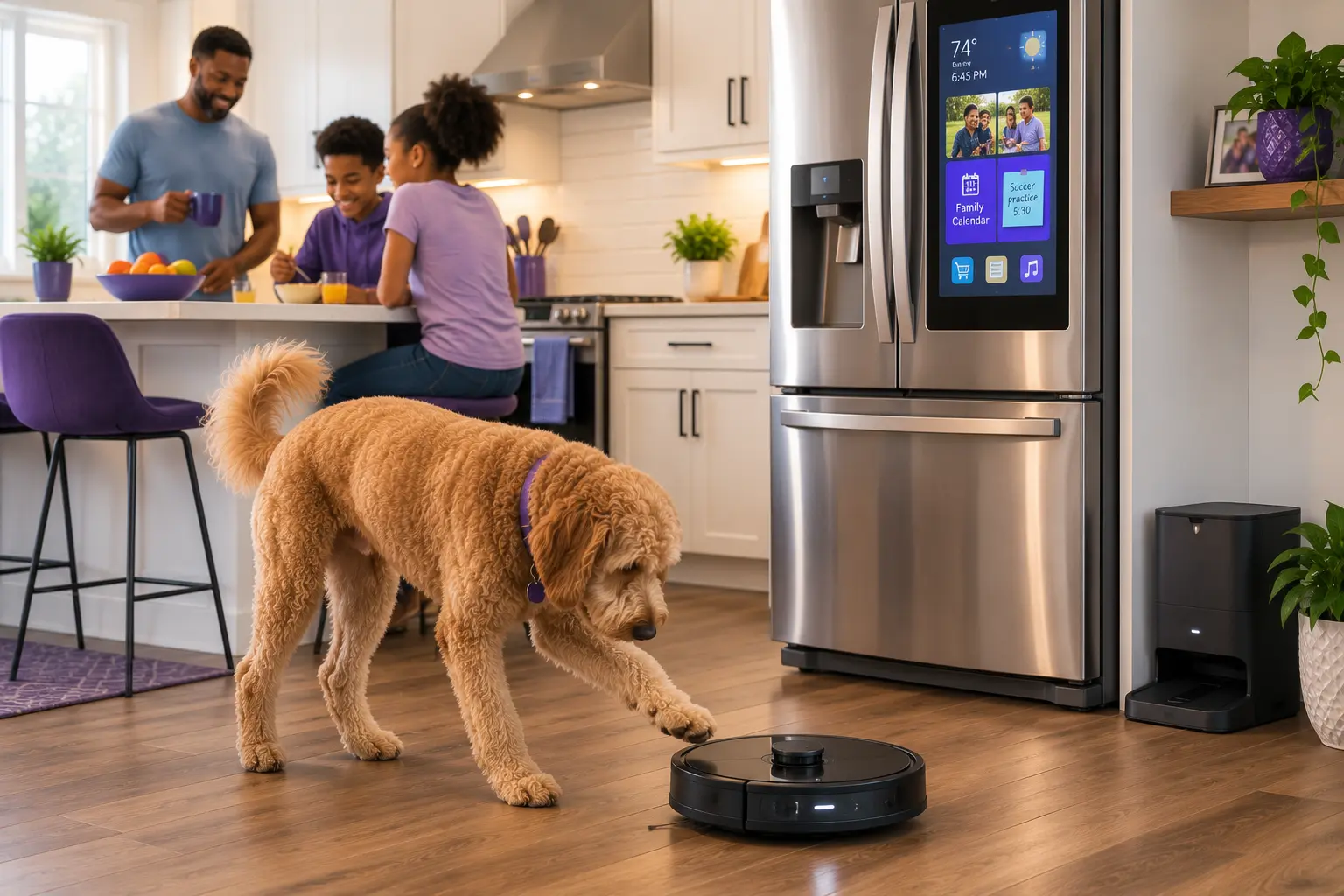
The final stage of your migration covers utility hardware, large home appliances, and low-priority lifestyle accessories. This final group contains your home printers and scanners, smart appliances like your refrigerator, connected coffee maker, or robot vacuum, and less used IoT devices such as smart web cam bird feeders, pet feeders, or smart fans.
Home printers and scanners are generally only needed occasionally, making them excellent candidates for the end of your list. Similarly, while smart refrigerators and connected coffee makers offer wonderful convenience, their offline status will not disrupt your daily routine. Finally, reconnecting specialty items like smart cam bird feeders can be handled whenever you have a free moment. Approaching these low-priority items last helps ensure that your core daily activities are completely unaffected by the transition process.
- Printers and scanner: Keep these utilities offline until you have an active document to process, as they are rarely time-sensitive.
- Appliances: Reconnect your refrigerator, coffee maker, and robot vacuum to restore secondary automated conveniences at your leisure.
- Less used IoT devices: Re-establish links for specialized hardware such as bird feeders, pet feeders, and smart fans when your primary schedule allows.
Keep your modern smart home running beautifully
Managing your network credentials does not have to be a source of constant frustration. By adopting a structured order of operations and utilizing clever bridging techniques, you can keep your digital environment secure without sacrificing daily productivity. High-performance, advanced Wi-Fi technology powered by Wi-Fi 7 helps provide greater coverage throughout your home than Wi-Fi 6, helping to ensure that even your most distant smart plugs maintain a reliable connection.
When you build your smart ecosystem on internet plans featuring symmetrical speeds on most plans, you can gain a future-ready foundation that easily adapts to your growing tech requirements. Enjoying these advanced wireless benefits is simple, offering the peace of mind of no annual contract and unlimited data to move with your lifestyle. Take control of your home network today and check availability in your area to see how modern fiber internet can elevate your daily connectivity. Are you ready to experience a highly streamlined, reliable way to help keep your entire smart home connected?
Content Disclaimer - All content is for informational purposes only, may require user’s additional research, and is provided “as is” without any warranty, condition of any kind (express or implied), or guarantee of outcome or results. Use of this content is at user’s own risk. All third-party company and product or service names referenced in this article are for identification purposes only and do not imply endorsement or affiliation with Quantum Fiber. If Quantum Fiber products and offerings are referenced in the content, they are accurate as of the date of issue. Quantum Fiber services are not available everywhere. © 2026 AT&T Intellectual Property. AT&T and the Globe logo are registered trademarks of AT&T Intellectual Property. All other marks are the property of their respective owners.